≡Orders
WooCommerce order management for teams that work orders all day
WooCommerce order management comes down to three things: finding the right order instantly, changing it safely, and knowing what it earned. FastOps gives an order desk all three from one workspace that answers in a second or less on a correctly configured store, with high-performance order storage (HPOS) supported natively.
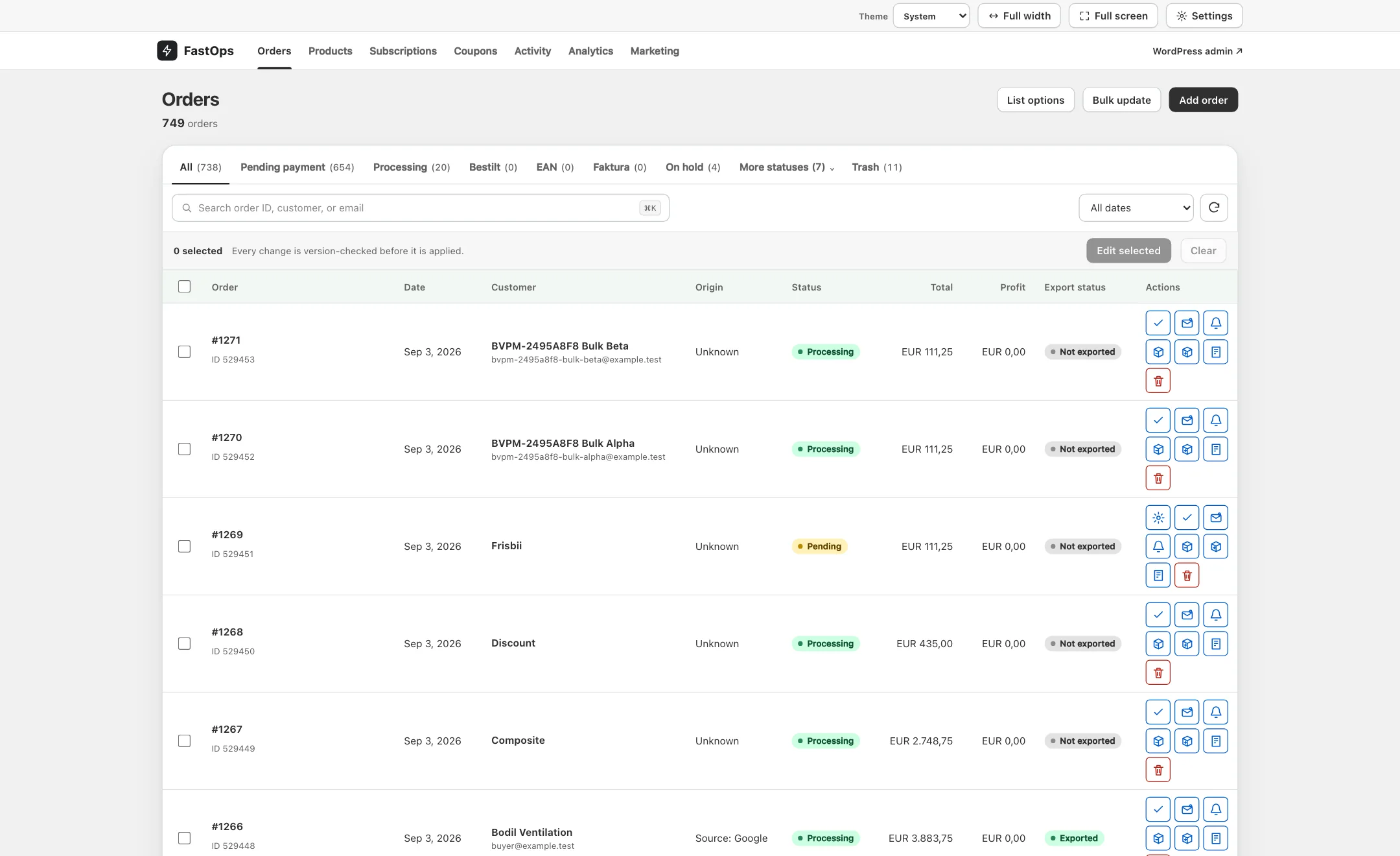
The order list. Search by order number, customer or email as you type; status, total and profit per order sit in the same row.
WooCommerce order search that keeps up with your typing
Most order desk time is spent finding things: the order a customer is emailing about, everything placed by one address, the orders still waiting to be shipped. In the classic admin each search is a page load, and on a store with hundreds of thousands of orders it is a slow one.
In FastOps, order search answers as you type, by order number, customer name or email, and the results narrow with each character. Status tabs and filters sit beside the search, so "processing orders from this customer" is a couple of clicks rather than a saved report. Stores using Sequential Order Numbers Pro see their own order numbers in lists and search rather than the internal ID.
Changing an order status without the wait
Status changes are the most frequent edit an order desk makes, and every one of them triggers something else: a customer email, a fulfilment request, an accounting sync. FastOps writes each status change through WooCommerce, so those hooks fire exactly as they would from wp-admin. Custom statuses from Order Status Manager are supported through a certified adapter.
Each change is version-checked against the order as you opened it, so two people working the same order cannot silently overwrite each other, and each change is recorded before it is applied. Order notes are kept in full and readable on the order, so the reason for a change travels with it. Bulk status changes run as background jobs with live progress, cancellation and an error ledger per order.
Editing addresses, line items and notes
Shipping and billing addresses, line items and order notes are editable from the same screen, and notes are readable in full rather than truncated. Shipment references from Shipmondo, Webshipper and Shipment Tracking, payment references from QuickPay, Reepay, PensoPay, Vipps MobilePay and Nexi, and invoice details from YITH PDF Invoice appear on the order through their adapters, so the desk does not have to open four plugins to see the whole picture. Configuration those plugins own, and that cannot safely be edited elsewhere, stays with them.
Profit per order, next to the total
A total tells you what a customer paid. Profit tells you whether the order was worth fulfilling. With a supported cost-of-goods source installed, such as the official Cost of Goods extension, Profitly or ProfitMetrics, FastOps shows cost and profit as a column on the order list and on each order, recomputed whenever the order changes. Margin questions that used to wait for a monthly report can be answered while the order is on screen.
The same cost figures sit beside price and stock in the product editor, so the merchandiser setting a price and the desk fulfilling the order are working from one set of numbers. Nothing is calculated in a separate tool: the cost-of-goods source you already use stays the source, and FastOps shows what it says.
HPOS and WooCommerce order management
High-performance order storage keeps orders in dedicated tables instead of the general posts table, and WooCommerce recommends it for new stores. FastOps supports HPOS natively and works the same way on stores that have not switched yet, so enabling HPOS is a decision about your store, not about your admin tools. With WooCommerce Subscriptions installed, each subscription and its related orders are linked from the same workspace.
What to look for in a WooCommerce order management tool
- Search by order number, customer and email that answers as you type.
- Status changes that fire your store's hooks, so emails and integrations keep working.
- Version checks, so two people cannot overwrite each other's edits.
- Cost and profit per order from the cost-of-goods source you already use.
- HPOS support, and the same behaviour on stores that have not switched.
- Orders stay in your database. Nothing is copied to an external service.
Questions about order management
Does FastOps support HPOS?
Yes, natively. High-performance order storage is supported, and stores that still keep orders in the posts table work the same way, so you can enable HPOS on your own schedule.
Will a status change in FastOps still send the customer email?
Yes. Status changes are written through WooCommerce, so the emails, fulfilment requests and integrations your store runs on a status change fire exactly as they would from wp-admin.
Can I see profit per order?
Yes, when a supported cost-of-goods source is installed, such as the official Cost of Goods extension, Profitly or ProfitMetrics. Cost and profit appear as a column on the order list and on each order, recomputed when the order changes.
Can I bulk change order statuses?
Yes. Bulk jobs on orders work the same way as on products: they snapshot the selected or filtered scope, run in the background with live progress, can be cancelled and keep an error ledger per record.
Does the order desk work on shared hosting?
Yes. FastOps needs ordinary WordPress hosting: PHP 7.4 or newer, WordPress 6.6 or newer and WooCommerce 8.2 or newer, on MySQL or MariaDB, with a single cron entry. No external service sits in the path of daily store operations.
See it on a store like yours.
Book a short demo and we will show FastOps for WooCommerce on a large catalogue, answer the questions this page did not, and tell you honestly whether it fits. Every plan covers the production store and its staging site, so you can measure the difference on your own data first.