01 · What every save guarantees
Three promises on every edit
- Version-checked. Every save is checked against the record as it was when you opened it. Nothing is ever silently overwritten.
- Recorded. Every change is recorded before it is applied, with who made it and when, and appears in the activity history.
- Written through WooCommerce. Changes go through WooCommerce's own data layer, so hooks, validation and other plugins see them exactly as if made in wp-admin.
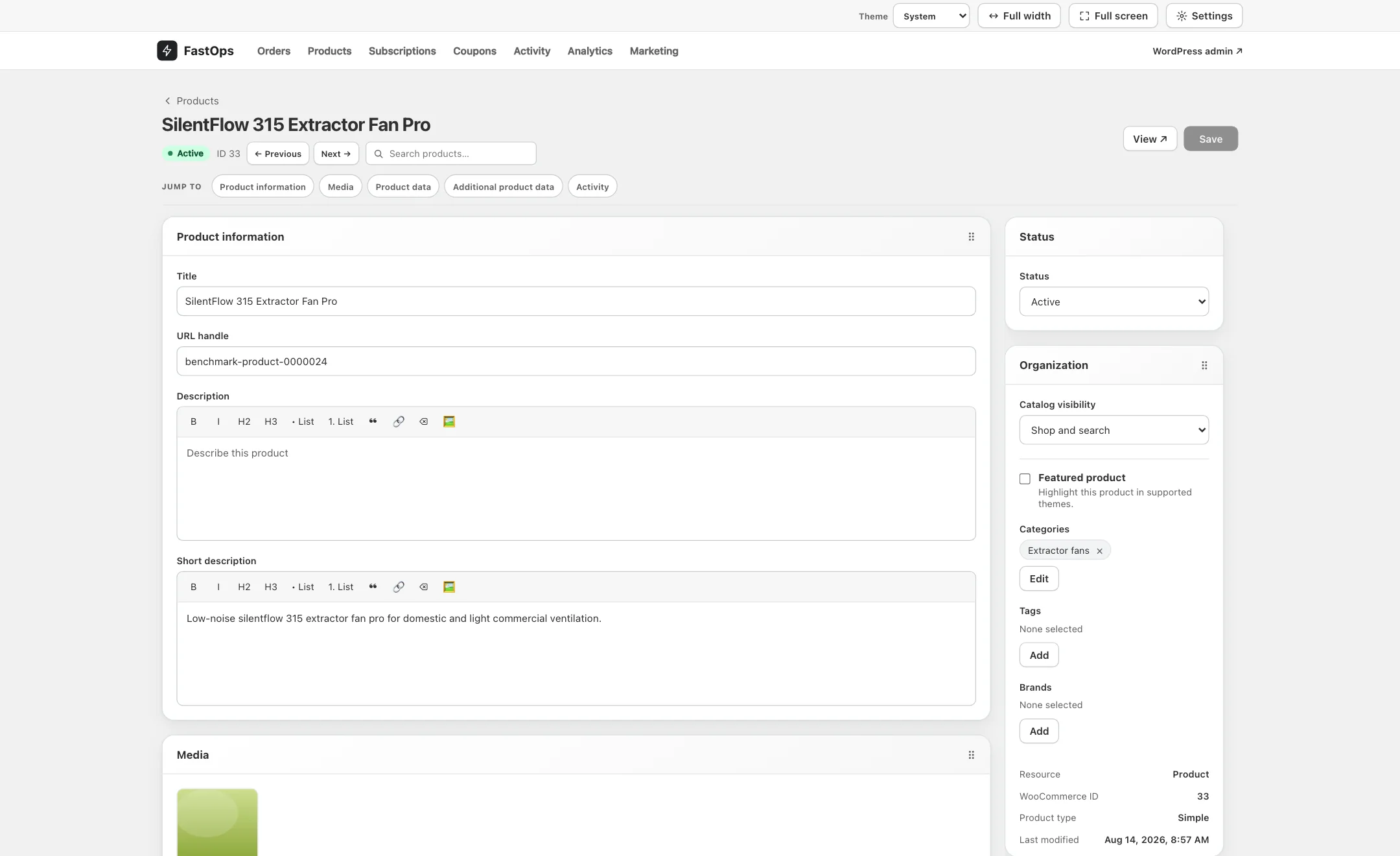
- Save is version-checked. If the record changed since you opened it, the save is refused and you are told.
- Activity jumps to the record's own change history, at the end of every editor.
- Status and WooCommerce ID, which the history refers to.
02 · When a record changed underneath you
What a conflict looks like
If someone else, or another plugin, changed the record after you opened it, your save is refused with a message saying the record has changed. Your typed values stay on screen.
- Reload the record to see the current values.
- Re-apply the change you wanted and Save again.
In a bulk job the same check runs per record: a conflicting record is skipped and listed in the job's error ledger rather than overwritten.
03 · When someone else is editing
Go back, or take over
Opening a record that a colleague already has open shows who is editing it. You can go back without changing anything, or take over. Taking over immediately makes their editor read-only: their unsaved values stay visible so nothing is lost, but they cannot save until they explicitly take over again.
04 · Activity history
Who changed what, and when
- Activity in the top bar lists changes across the whole store. Filter by record type or by user, search, and load older entries.
- Every editor ends with the same history for that one record.
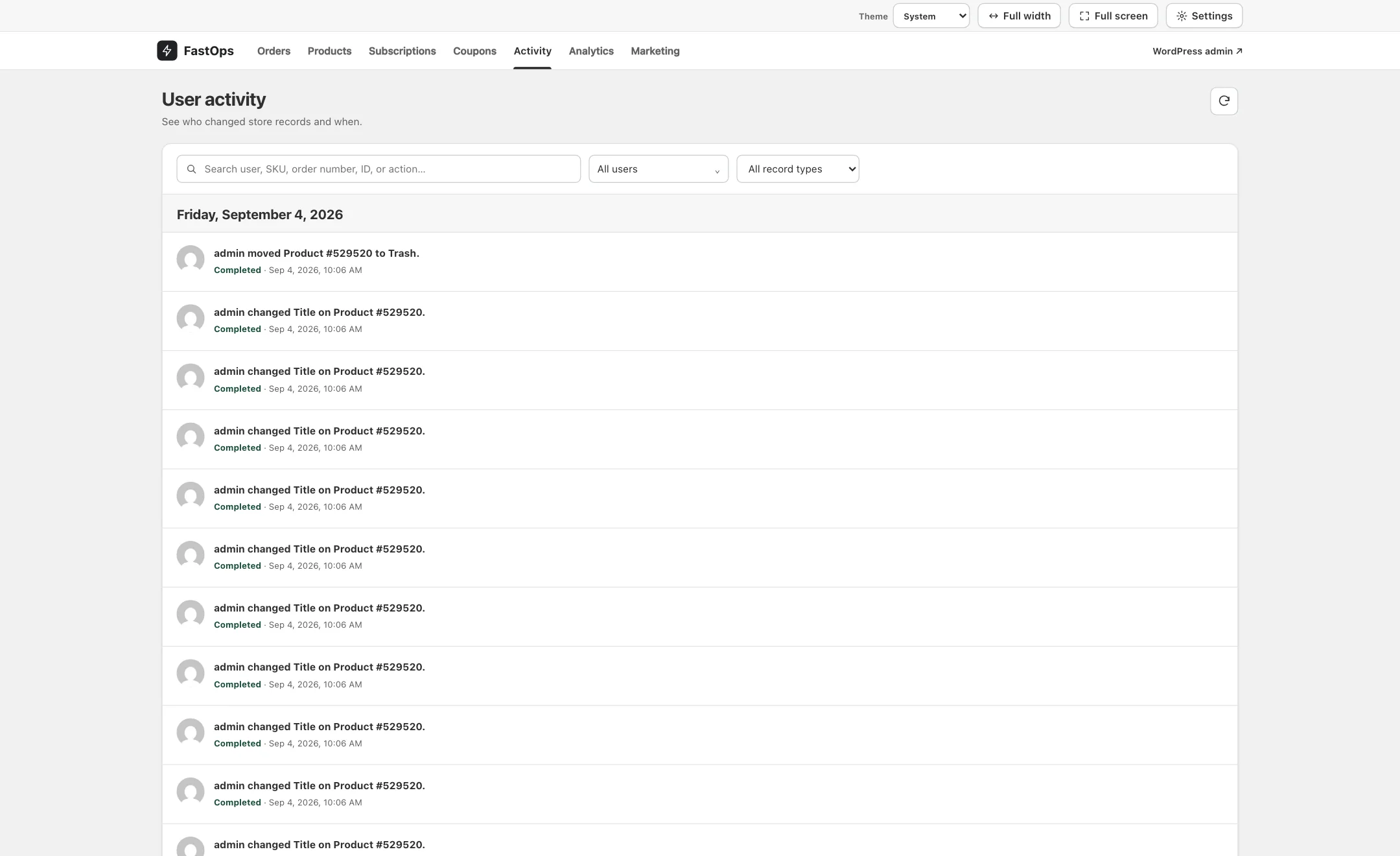
- Search by user, SKU, order number, ID or action.
- Filter by user.
- Filter by record type.
- Who changed what, on which record.
- The outcome and the time of the change.
The Activity page can be hidden from the top bar in Settings; the per-record history stays available.
05 · What stays read-only
Shown, not rewritten
- Unrecognised fields. Values on a record that belong to no recognised extension are listed read-only. FastOps never guesses at their meaning or rewrites them.
- Parts of a structure that cannot be safely edited, for example an ACF sub-field of an unsupported type, are named and left exactly as stored.
- Trashed orders are read-only until restored.
- Plugin-owned configuration that only its plugin can safely change links you to the right WordPress screen instead.
06 · Where your data lives
On your server
FastOps runs inside your WordPress installation and stores what it needs in your own database. Product, order and customer data never leave your server; the only outside call is the background licence and update check to FastOps Cloud, which carries no store data.
Deactivating FastOps keeps its data so it can be reactivated; uninstalling removes its tables, options and schedules. WordPress's personal-data export and erasure tools cover the order and subscription records FastOps keeps.