01 · The worker has stopped
"Some actions may take longer"
When the background worker is not running, the workspace shows a plain notice that some actions may take longer. Single edits still go through, but bulk jobs wait and lists may fall behind WooCommerce.
- On shared hosting, check that the cron entry from Getting started is still present, on one line, and that
FASTOPS_PHPpoints at a command-line PHP. Hosting panels sometimes reset cron after a migration. - On a VPS, check the Supervisor or systemd service status and restart it.
- From the command line,
wp fastops status --field=worker.alivereports whether a worker is alive; add--url=on multisite. - In FastOps → Settings, enable debugging to see worker restarts, resource use and the hosting readiness panel.
Keep WordPress cron healthy tooFastOps uses WordPress cron or Action Scheduler for some background tasks even when a permanent worker is running.
02 · Licence states
What FastOps → Pro licence can show
The licence state controls Pro updates and support access only. The features already installed, and your store, keep working whatever the state.
| State | Meaning | What to do |
|---|---|---|
| Active | Licensed and checked recently. | Nothing. |
| Updates paused | The subscription has lapsed or the plan has no free seat for this site. | Renew or free a seat in your FastOps account, then Check licence now. |
| Installation blocked | This installation's seat was revoked by an operator. | Contact support if unexpected. |
| Cloud temporarily unreachable | The last background check could not reach FastOps Cloud. | Nothing; checks retry. If it persists, ask your host whether outbound HTTPS is blocked. |
| Reconnect required | The site address changed or the stored secret was lost, often after a restore or migration. | Activate again with the key and the right environment. Use the recovery token from your account only if the page asks for it. |
| Not activated | No key has been entered on this site. | Follow Activate the licence. |
03 · A list looks out of date
Refresh, then rebuild if needed
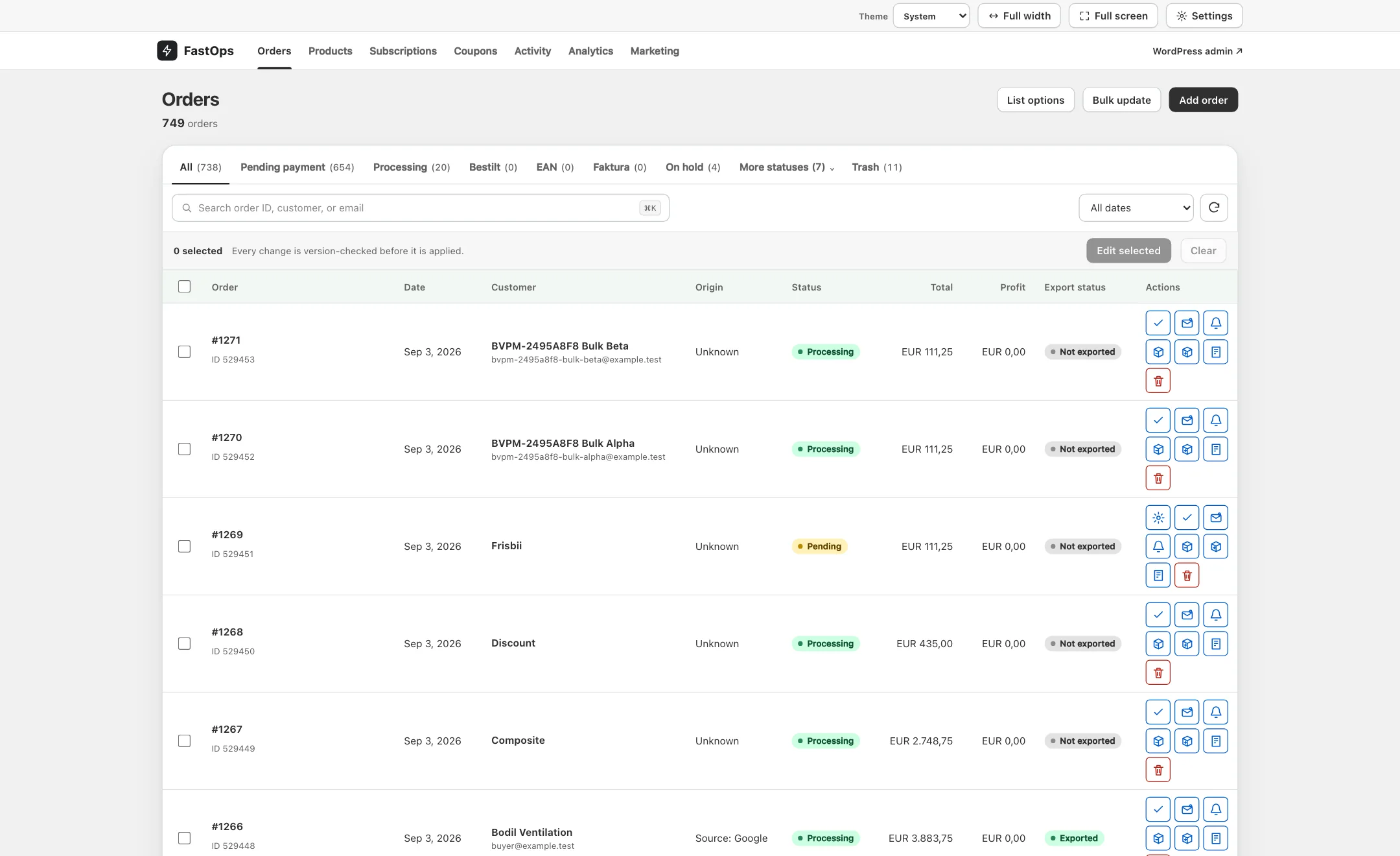
- Refresh reloads the list.
- The total count; compare it with WooCommerce if you suspect the index is behind.
- Choose the refresh control on the list. Changes made in WordPress normally appear within seconds.
- If the worker was stopped for a while, start it; it catches up on its own.
- If counts still differ from WooCommerce, choose Build index in the workspace or run
wp fastops rebuild --type=all. Rebuilding is safe at any time and does not change store data.
04 · FastOps asks for HPOS
Enable high-performance order storage
FastOps requires WooCommerce's high-performance order storage. Enable it from WooCommerce → Settings → Advanced → Features after WooCommerce's synchronisation checks pass; FastOps never changes order storage itself. See Orders.
05 · Contact support
Send the environment report
- In FastOps → Settings, enable debugging.
- Choose Download the environment report. It contains plugin names and versions and background-processing status; it contains no order or customer data.
- If an extension failed after a save, FastOps names the hook and callback and offers a sanitised report; include it.
- Email both, with what you were doing and the record's WooCommerce ID, to [email protected].