01 · Find an order
By number, customer or email
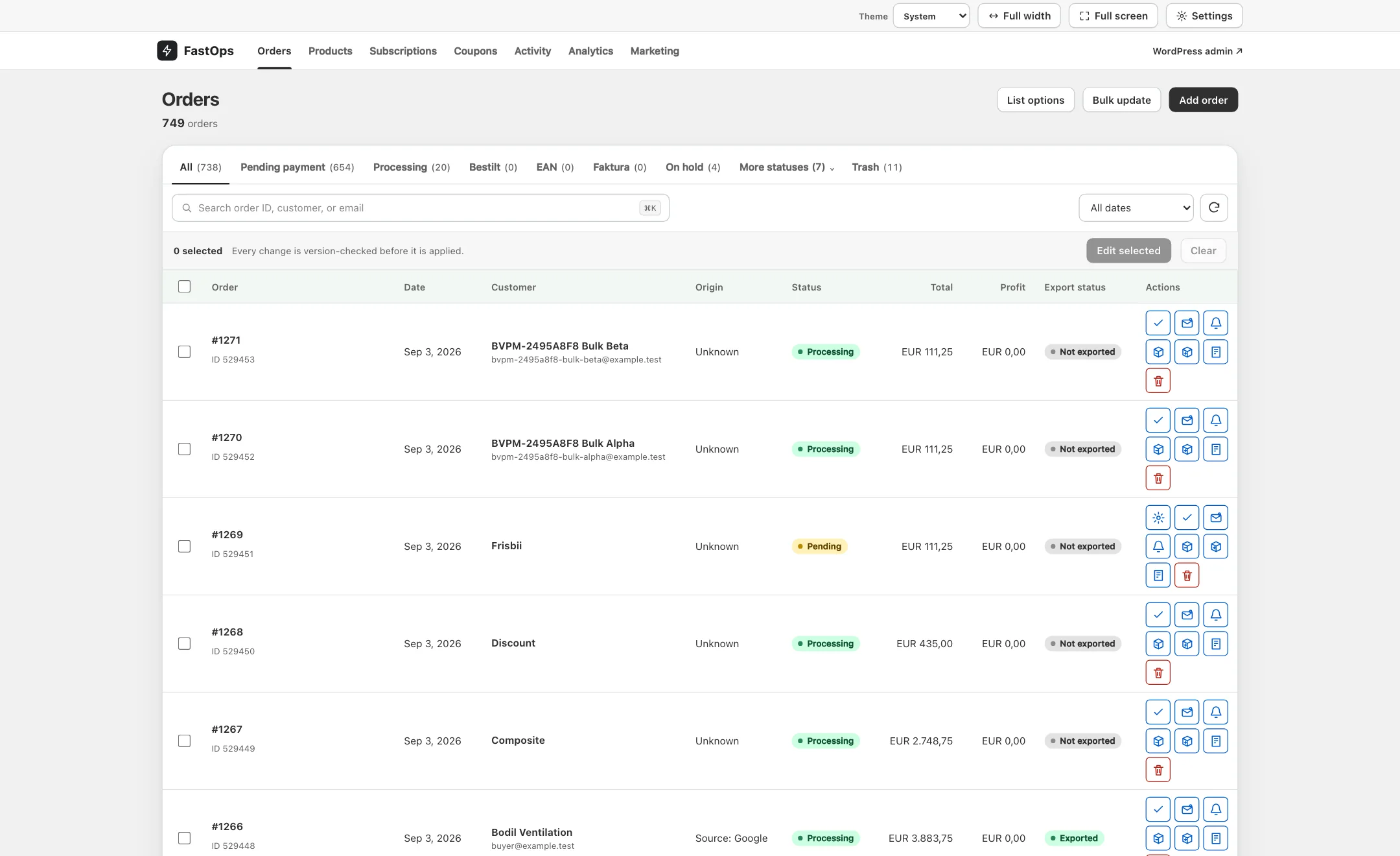
- Status tabs with counts. Custom statuses from other plugins get their own tabs.
- More statuses collects the rest; Trash is always last.
- Search by order number, customer name or email.
- Date filter.
- Order number and WooCommerce ID.
- Customer and email.
- Origin: the sales source WooCommerce recorded for the order.
- Status.
- Total.
- Profit (needs a cost source, see below).
- Row actions, including moving the order to Trash.
Type part of a number, a surname or an email domain and the list narrows as you type. Combine it with a status tab and the date filter.
02 · Statuses
Change a status from the editor or in bulk
- Open the order and change Status in the card on the right, then Save. WooCommerce's own rules apply: emails and stock actions triggered by a status change fire exactly as in wp-admin.
- To change many orders, tick them on the list and choose Edit selected, or use Bulk update. See Bulk operations.
The editor also offers the core WooCommerce order actions: resend order emails and reduce or restore stock.
03 · Addresses and line items
The order editor
The order editor follows the same layout as products: jump chips at the top, a Status card on the right, and the customer, addresses, items, totals, payment and notes in cards down the page.
- Customer and addresses: billing and shipping on two tabs; edit either and Save.
- Items: product, fee, shipping and coupon lines. Add or remove lines and recalculate totals and tax.
- Refunds: refund individual lines or amounts, with the gateway's own behaviour.
- Downloads: view, edit and regenerate downloadable-product permissions.
- New orders can be created from the list; trashed orders can be restored.

- Order number; the WooCommerce ID below it.
- Customer name and email.
- Origin.
- Status pill: green for Processing, amber for Pending.
- Order total in the order currency.
- Profit, once a cost source is installed.
- Row actions, including moving the order to Trash.
04 · Notes
Private notes and notes to the customer
The Order notes card lists the note history and lets you add a note. Choose Private for the team or Note to customer to email it, exactly as WooCommerce does. Older notes load when you scroll.
05 · The profit column
Profit needs a cost source
The Profit column shows the order total minus the cost of the items sold. It is only meaningful when the store records product costs.
- Enable WooCommerce's cost of goods, or install a supported cost integration (see Integrations).
- Enter costs on products and variations; see Cost of goods.
06 · Order storage (HPOS)
High-performance order storage is required
FastOps reads and writes orders through WooCommerce's high-performance order storage. If the store still uses legacy post-based storage, FastOps says so on its first screen and the order list stays empty.
Enable HPOS from WooCommerce → Settings → Advanced → Features after WooCommerce's own synchronisation checks pass. FastOps never changes a live store's order storage itself.