01 · The coupon list
Every code, with its status
The coupon list shows each coupon with its code, type, status, usage against its limit, expiry and amount. Search by code or ID, filter by status tab, and use Add coupon to create one.
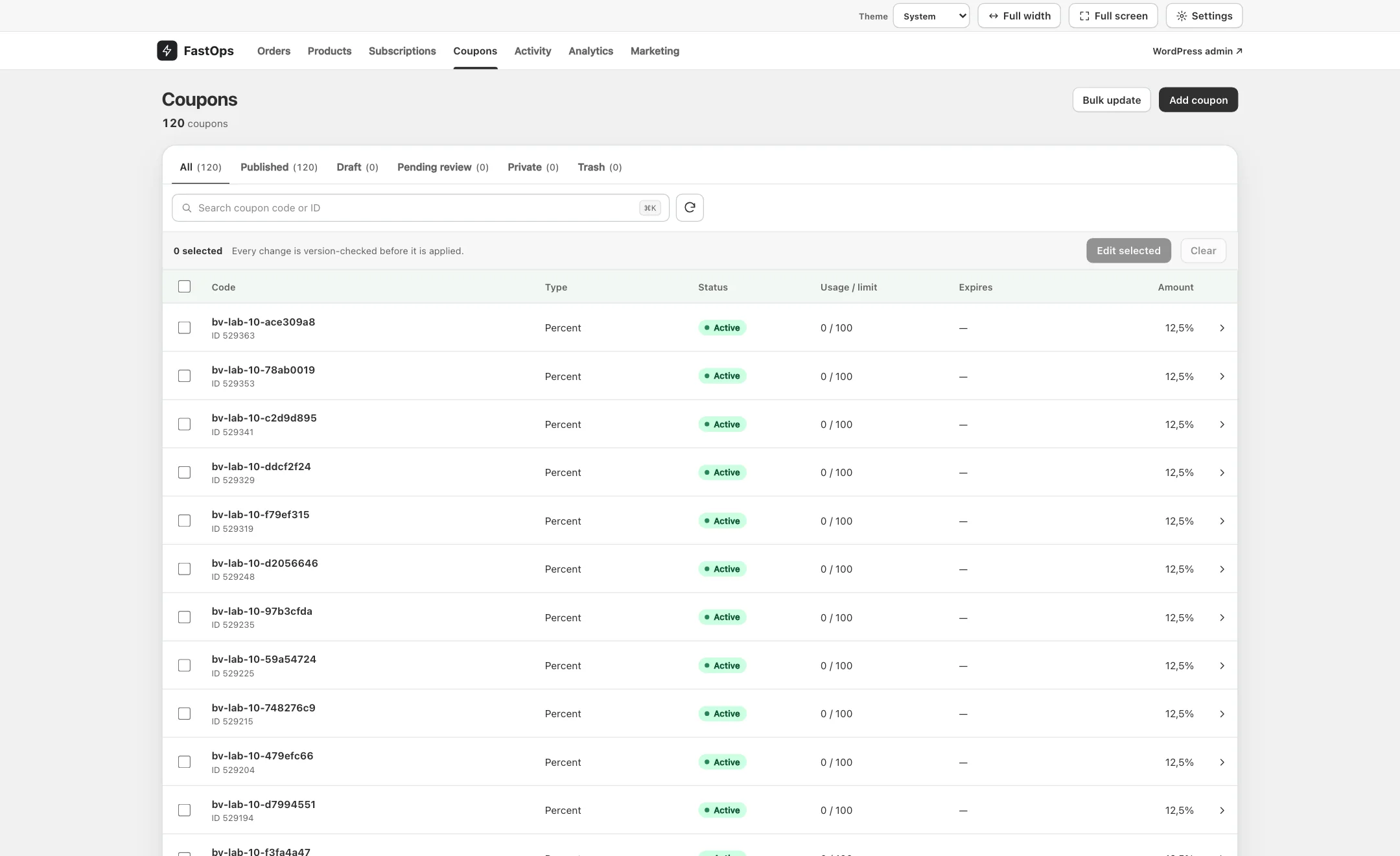
- Status tabs: All, Published, Draft, Pending review, Private and Trash, with counts.
- Search by coupon code or ID.
- Coupon code, with the WooCommerce ID below it.
- Discount type.
- Status pill.
- Usage so far against the usage limit.
- Expiry date; a dash means the coupon does not expire.
- Amount: a percentage or a fixed sum.
- Add coupon.
02 · The coupon editor
Code, discount and description
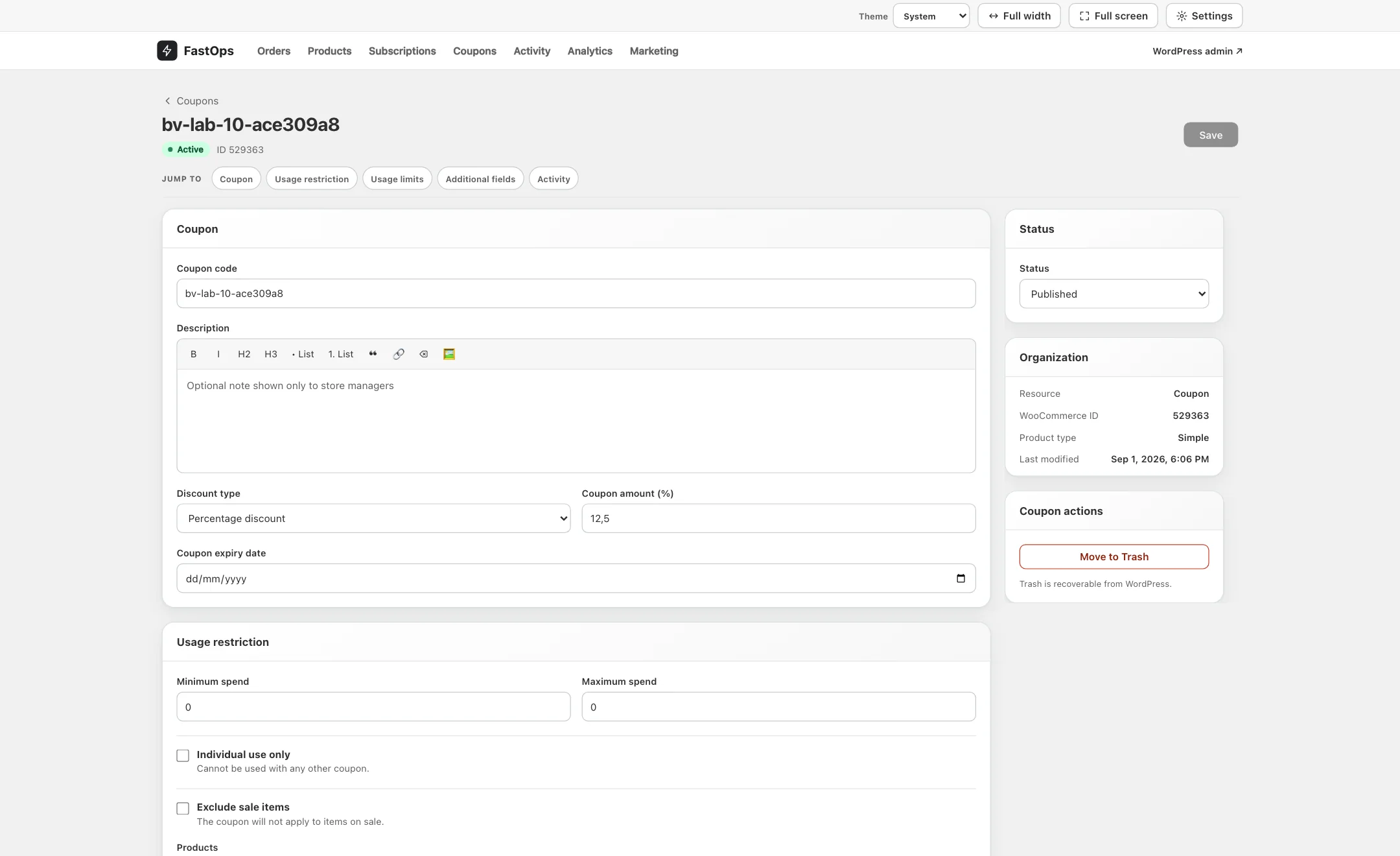
- Jump to: Coupon, Usage restriction, Usage limits, Additional fields and Activity.
- Coupon code, as the customer will type it.
- Description: a note shown only to store managers.
- Discount type: percentage, fixed cart or fixed product.
- Coupon amount, in percent or the store currency.
- Coupon expiry date. Leave it empty for a coupon that does not expire.
- Status: Published coupons can be used; Draft ones cannot.
- Organisation: WooCommerce ID and when the coupon was last modified.
- Coupon actions: Move to Trash, recoverable from WordPress.
- Usage restriction begins with minimum and maximum spend.
- Save (⌘S).
03 · Usage restrictions and limits
Who can use it, on what, how often
- Usage restriction: minimum and maximum spend, individual use only, exclude sale items, the products and categories the coupon applies to or excludes, and allowed emails.
- Usage limits: how many times the coupon can be used in total, how many items it applies to, and how many times each customer may use it.
- Expiry is set with the discount, in the Coupon card.
These are WooCommerce's own fields with WooCommerce's own rules; a coupon saved in FastOps behaves identically at checkout.
04 · Extension fields
Additional fields
Fields added by supported coupon extensions, such as Smart Coupons, appear under Additional fields with their own validation. Values FastOps does not recognise are listed read-only and left untouched. See Integrations.