01 · Navigation
One bar, every list
The top bar is the same on every screen. Each entry opens a list; each list opens an editor. You are never more than two clicks from any record.

- Main navigation. Analytics and Marketing appear only for users whose access level includes them.
- List options for the current list.
- Bulk update: change many records at once (see Bulk operations).
- Add a new record.
- Status tabs with live counts.
- Search as you type; ⌘K or / focuses it.
- Show categories opens the catalogue content panel on Products: categories, tags, brands, shipping classes and attributes.
- Theme, Full width and Full screen (see Fit the workspace to your screen).
- Settings, for users who may manage them.
- Back to the normal WordPress admin.
The gear at the far right of the bar opens Settings for users who may manage them. A link back to the normal WordPress admin is always available from the workspace.
Activity and Analytics are pages rather than lists: one shows who changed what across the store, the other the store's totals.
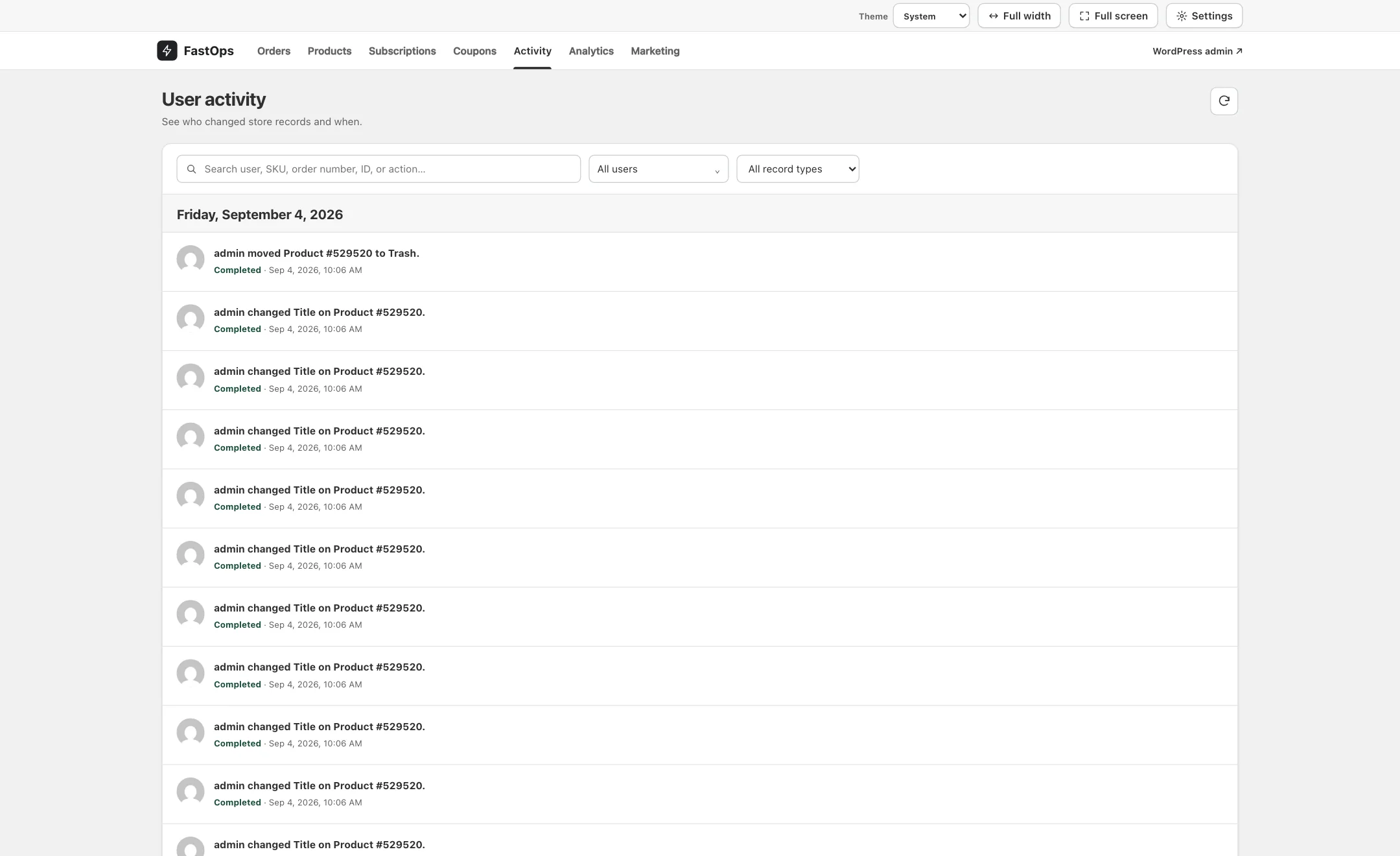
- Activity in the top bar.
- Search by user, SKU, order number, ID or action.
- Filter by user.
- Filter by record type.
- Entries are grouped by day.
- Who changed what, on which record.
- The outcome and the time of the change.
- Refresh the page.
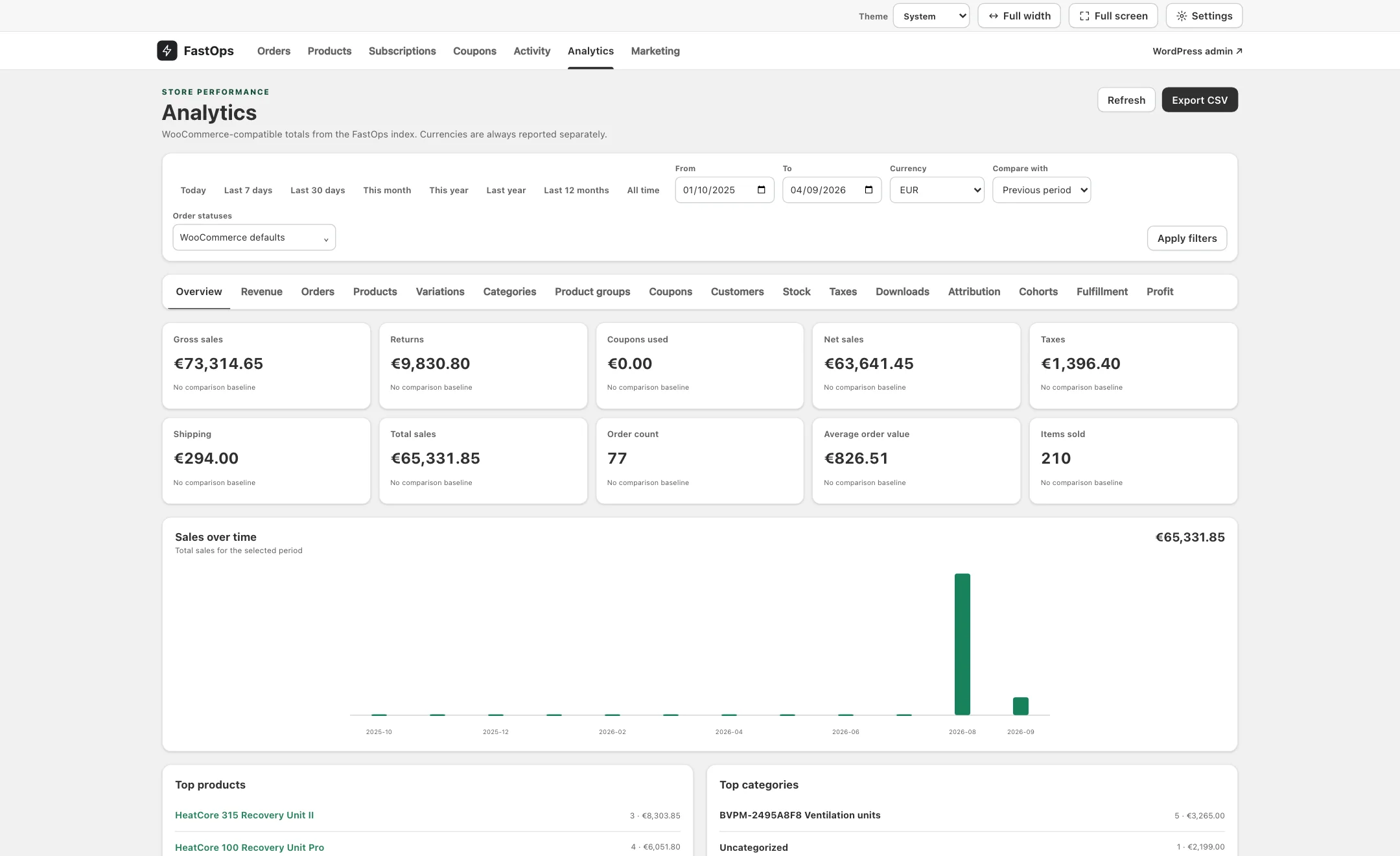
- Analytics in the top bar.
- Date presets, from Today to All time.
- Custom date range.
- Currency. Each currency is reported separately, never combined.
- Compare with the previous period.
- Order statuses to include; WooCommerce's defaults unless you change them.
- Apply filters.
- Report tabs, from Overview to Profit. Profit needs a cost source.
- Totals for the period: gross sales, returns, coupons used, net sales, taxes, shipping, total sales, order count, average order value and items sold.
- Sales over time for the selected period.
- Export the current report as CSV.
- Top products and top categories for the period.
02 · Search as you type
Results appear while you type
Every list has one search box. There is no search button: results narrow as you type, and the counts on the status tabs update with them.
- Products search product names and SKUs, for variations as well as parents.
- Orders and Subscriptions search the order number, customer name and email address.
- Coupons search the coupon code.
Inside an editor there is a second search box to jump straight to another record of the same kind, plus Previous and Next to walk through the list you came from.
03 · Status tabs and filters
Narrow the list before you act on it

- Search box; the list narrows as you type.
- The ⌘K hint (Ctrl+K on Windows and Linux). The cross clears the search.
- Sorting: choose the column and direction.
- Product type filter, with the count of matching records.
- Selection bar: how many rows are ticked.
- Column headings with an arrow can be sorted by clicking.
- Status pill on each row.
The status tabs across the top of a list (All, Active, Draft, Processing, On hold and so on) are filters too. Custom order statuses added by other plugins appear as their own tabs or under More statuses.
04 · List options
Shape the list to the job
List options, at the top right of every list, controls how that list is displayed. Settings are remembered per list, so the way you set up Orders does not affect Products.
The Catalogue content panel beside the product list can be shown or hidden independently in Settings.
05 · Theme, full width and full screen
Fit the workspace to your screen
- Theme follows your system by default. Choose Light or Dark to fix it.
- Full width lets lists and editors use the whole browser width, which helps on wide monitors and with many columns.
- Full screen hides the browser chrome for the current screen.
The interface is available in English and Danish, chosen per user.
06 · Keyboard shortcuts
Two shortcuts worth learning
FastOps shows the shortcut for your computer; both the Command and Control keys work.
| Action | macOS | Windows and Linux |
|---|---|---|
| Focus the list search | ⌘K or / | Ctrl+K or / |
| Save the open record | ⌘S | Ctrl+S |