01 · Start with Inventory
Install the extension and prepare the stock workspace
FastOps Inventory is a separate extension for stores that need purchasing, warehouse and fulfilment controls. Its required activation order is WooCommerce → FastOps Community → FastOps Pro → FastOps Inventory.
- Install and activate all four plugins on the WooCommerce site. On WordPress multisite, activate Inventory separately on each store that will use it.
- Open the FastOps workspace and choose Inventory. The Overview shows how many stock-managed products are ready.
- If the initial stock sync is incomplete, choose Synchronize now. Start operational work after the tracked-product count reaches 100%.
- Open Settings, check the default warehouse and add the dispatch address, locations and purchase-order approval policy your team needs.
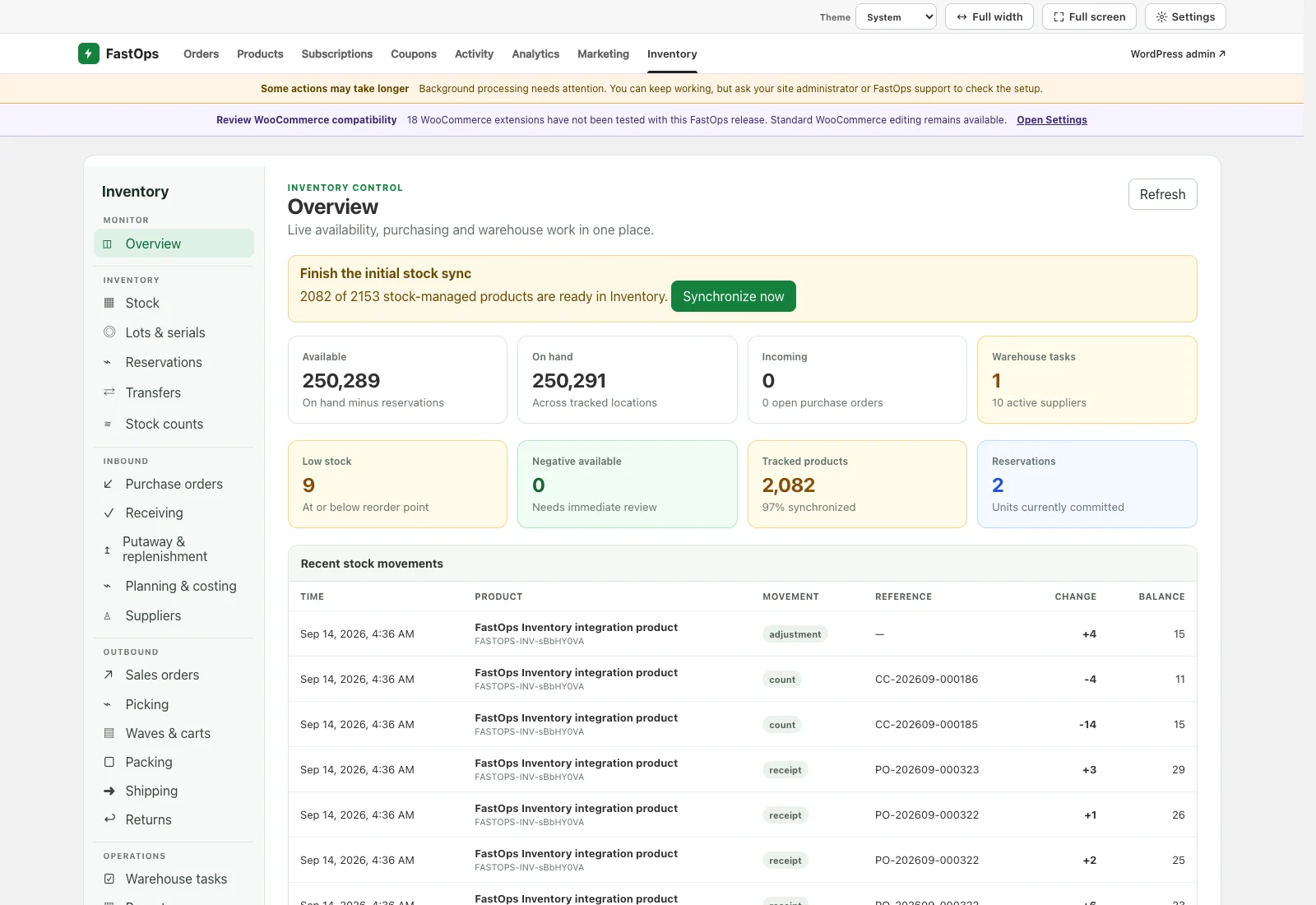
- Use the left-hand menu to move between stock, purchasing, warehouse, fulfilment and integration work.
- The initial sync banner shows exactly how many stock-managed products are ready.
- Available stock is on hand minus active reservations.
- Low-stock and negative-availability cards point to work that needs attention.
- Recent movements show what changed, why it changed and the resulting balance.
03 · Stock control
Know what is on hand, reserved, available and incoming
Stock lists every tracked product with its SKU or GTIN, on-hand quantity, reservations, available quantity, incoming quantity, reorder point, maximum stock and stock status.
- Search by product name, product ID, SKU or GTIN. Choose a stock condition to focus on low, out-of-stock, negative or overstock items.
- Save a useful combination of search and stock condition as a personal view.
- Choose Adjust to set an exact quantity, increase it or decrease it. Enter a reason and optional reference so the change is explainable later.
- Select rows and choose Adjust selected for a reviewed bulk change.
- Use Import stock for CSV changes. Review the no-change preview and its row errors before starting the import. Export downloads the current filtered view.
- Choose Scan to find a product with its SKU or GTIN.
04 · Warehouses and locations
Begin with one warehouse, then add bin control when needed
Under Settings, each warehouse has a name, code and dispatch contact/address. Add locations with a code, name, operational type and pick priority; the lowest pick-priority number is selected first.
Inventory starts in single-location mode, where the default warehouse follows current WooCommerce stock. Choose Enable multi-location stock only after every location is prepared and no receiving, picking, transfer or count work is in progress. FastOps checks that every product total agrees before switching.
05 · Planning and suppliers
Record the terms that determine what and when to buy
Create suppliers with their display and legal names, supplier code, VAT or tax number, contact details, commercial address, currency, lead time, payment terms and delivery terms.
From a product in Stock, choose Plan to set its reorder point, safety stock, maximum stock, preferred supplier, supplier SKU, unit cost, currency, lead time, minimum order and pack size.
In Planning & costing, add a demand policy using a moving average or manual daily demand. The recommendation shows daily demand, available and incoming stock, its target quantity, suggested order quantity and the calculation basis. Supplier pack size and minimum order are applied to the result.
06 · Purchase orders
Create, approve and place supplier orders
- Create a purchase order and choose its supplier, warehouse, currency and expected date.
- Add the buyer and supplier references, payment and delivery terms, freight, other order costs and notes.
- Add one or more products with quantity, unit cost, tax rate, supplier SKU and description. Save the document as a draft.
- If approvals are enabled, send the draft for approval. A qualifying order cannot be placed until the current version is approved; stores may require a manager other than the requester.
- Mark the approved draft as ordered. Incoming quantities then appear in stock and planning.
Drafts can be edited or cancelled before stock moves. Editing an approved document resets its approval. The document view retains status, ordered and received quantities, recorded cost, references and its complete history.
07 · Receiving and putaway
Receive what arrived and make every difference explicit
Receiving shows ordered and partly received purchase orders. Open one, select the receiving location, scan or enter SKUs and GTINs, and record sellable, damaged and quarantined quantities separately.
- Confirm shortages, overages and non-sellable units before completing a receipt.
- Leave Delivery complete off for a partial delivery. Use it when no more units are expected.
- Resolve each open discrepancy with its actual outcome and a required note. Quarantined or inspected units become sellable only when they are deliberately released.
- Use Putaway & replenishment to define destination rules, then create putaway tasks for received stock.
- Create replenishment policies between storage and pick locations. Suggestions show the source, pick-face quantity, target and proposed move before tasks are created.
08 · Reservations and allocation
Commit available stock before work reaches the picker
A reservation commits quantity without changing physical on-hand stock. Record the product, location, quantity, source or reference, expiry and note. Releasing a reservation requires a reason; overdue reservations can be reviewed and released in a controlled action.
Sales orders is the fulfilment queue for eligible WooCommerce orders. Allocate each order line to one or more warehouses or bins, allow a partial allocation when appropriate, record any backordered quantity, set priority and planned release, or place the work on hold with a reason. Releasing an allocation creates its directed pick work.
09 · Picking and waves
Give operators a verified route through the warehouse
Picking presents route-ordered source locations with the assigned quantity. Assign an operator, scan the SKU or GTIN, confirm the picked quantity and record an exception when the requested stock cannot be picked. Alternate-bin reallocation keeps the order moving while preserving the reason.
Use Waves & carts to group compatible picks, assign operators and load-unit capacity, and track carts or totes. Partial progress is retained, and completed work remains available in history.
10 · Packing and shipping
Verify every parcel before dispatch
- Create a package from a completed pick or an eligible order and warehouse.
- Scan each SKU or GTIN and confirm its packed quantity. One order can use multiple packages.
- Enter parcel weight and dimensions, then verify and seal the package.
- Create a supported provider label or record the service, tracking number, label URL and shipment cost manually.
- Dispatch the sealed package. Tracking is saved with the WooCommerce order and the shipment stays in Inventory history.
11 · Returns
Authorize, receive, inspect and settle an RMA
Create a return against the original WooCommerce order, select the requested products and quantities, and record the reason, return method, tracking and receiving location. Move the RMA through authorization and transit, then receive each line with its actual condition.
Choose the correct disposition for every unit: restock sellable stock, quarantine it for review, or record another supported outcome. A return can be linked to its WooCommerce refund or replacement order. Closing it keeps the full product, stock and settlement history together.
12 · Lots, serials and expiry
Follow traceable stock from receipt to dispatch
Set a product tracking policy to none, lot or serial. For tracked products, record the lot or batch, serial number, supplier lot, manufacture date and expiry during receipt or when adding opening stock.
- Trace coverage compares physical stock with the quantity assigned to lots or serials.
- Quarantined or recalled stock is kept unavailable until deliberately released.
- Expiry-aware allocation prefers stock that expires first.
- The Trace view shows the receipt, location, transfer, pick, return and status history for a lot or serial.
13 · Transfers, counts and tasks
Keep internal movement and stock corrections controlled
| Workflow | How to use it |
|---|---|
| Transfers | Create a draft between different warehouses, add product lines, dispatch the actual quantities, then receive them at the destination. Unshipped drafts can be cancelled or reopened. |
| Stock counts | Choose a warehouse or location and products, use blind mode when counters must not see expected quantities, enter counts and notes, then complete or send material differences for approval. |
| Warehouse tasks | Create a check or bin-move task with product, quantity, priority, locations, instructions and optional barcode verification. Operators claim, complete or record an exception. |
If another manager changes the same open document, FastOps asks you to refresh instead of silently overwriting their work.
14 · Reports and costing
Turn stock exceptions into the next action
Reports summarises low stock, out-of-stock products, negative availability and overstock. Purchase suggestions combine availability, incoming stock, reorder settings and preferred-supplier costs.
Planning & costing also shows FIFO inventory value and valuation coverage. Purchase receipts create cost layers from recorded unit cost. Add opening cost for existing unvalued stock and allocate freight, duty, brokerage, insurance, handling or other landed costs by received value or quantity. Recording a planning snapshot preserves the inputs behind a recommendation for later review.
15 · Integrations
Connect each external account separately
Open Integrations, choose a provider, give the connection a clear account name and enter its credentials. A provider can have more than one account. Use Test where available and review status, errors and completed work under Recent activity.
| Operation available now | Providers |
|---|---|
| Purchase shipping labels and save tracking | Shipmondo, Webshipper, nShift Delivery, Homerunner, Sendcloud, ShipStation and EasyPost |
| Send a WooCommerce product | e-conomic, Xero and Microsoft Dynamics 365 Business Central |
| Send an exact stock quantity for one SKU | Shopify, eBay, Amazon Seller Central and Walmart Marketplace |
16 · Store compatibility
WooCommerce remains the store record
- High-Performance Order Storage: FastOps Inventory declares compatibility with WooCommerce HPOS.
- WPML and WooCommerce Multilingual: physical stock belongs to the original product. Product translations are not counted as separate inventory.
- Variations: each stock-managed variation is tracked as its own inventory item.
- Multisite: activate and configure Inventory per WooCommerce store; do not network activate the extension.
17 · Troubleshooting
Resolve the message before repeating an operation
- Initial stock sync is below 100%
- Choose Synchronize now and wait for the tracked count to finish. Do not enable multi-location control until every stock-managed product is ready.
- A quantity changed while I was editing
- Refresh the record, review the newer quantity or document version, then apply the change again. FastOps prevents an older screen from overwriting newer work.
- Available stock is lower than on hand
- Open Reservations and Sales orders. Active commitments reduce available quantity without reducing physical on-hand stock.
- A receipt is still open
- A partial delivery remains open until the remaining quantity arrives or you complete the delivery and confirm the shortage.
- Trace coverage needs attention
- Open Lots & serials and record opening trace identity for physical stock that predates traceability.
- FIFO valuation has a gap
- Add an opening cost for existing stock or check that purchase receipts have a recorded unit cost and currency.
- An integration shows Needs completion
- The provider operation was accepted. Use Complete in Recent activity so FastOps can finish recording it; do not submit the external operation again.
- An Inventory action is unavailable
- Check that WooCommerce, FastOps Community, FastOps Pro and FastOps Inventory are active and compatible, then review the message shown in the workspace.