01 · Start with Channels
Connect external channels without creating a second store
FastOps Channels adds one place to prepare products for external destinations, keep advertised stock aligned and handle marketplace work. WooCommerce remains the record for products and orders. Channels records the destination, its product status and the external identity of every imported order.
The required activation order is WooCommerce → FastOps Community → FastOps Pro → FastOps Channels. FastOps Inventory is optional. When it is active, Channels can use its available quantity; otherwise Channels can use WooCommerce stock.
| FastOps area | What it controls |
|---|---|
| Products and Orders | The normal WooCommerce product and order records. |
| Inventory | Physical stock, reservations, warehouses, purchasing and fulfilment operations when the Inventory extension is installed. |
| Channels | Connections, destination catalogs, channel offers, advertised availability, marketplace intake, provider updates and channel performance. |
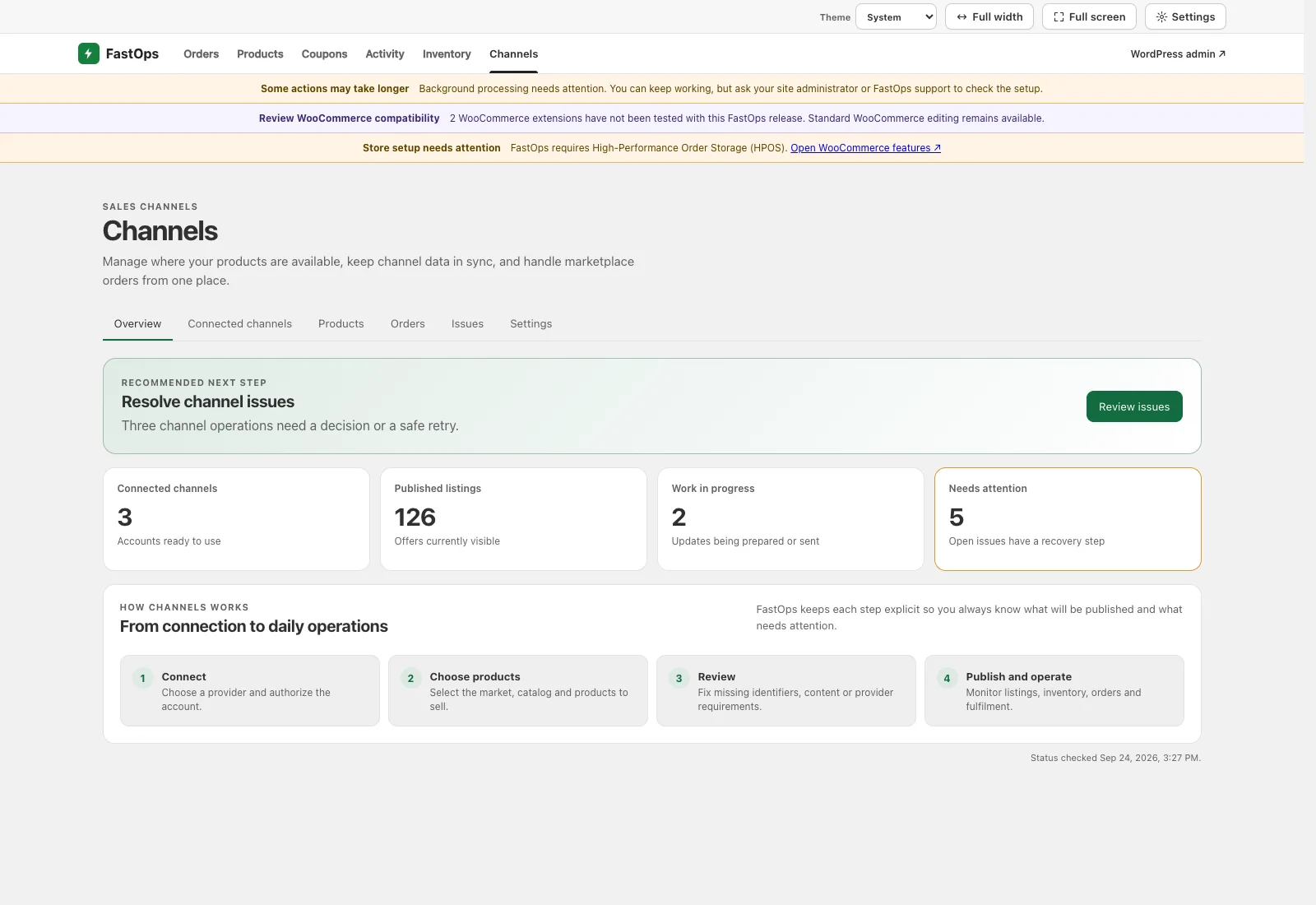
- Start with the recommended next step. It changes as setup and operational conditions change.
- Connected channels counts accounts that are ready to use.
- Published listings counts offers currently visible at their destinations.
- Needs attention identifies work with a clear recovery step.
- The setup path stays explicit: connect, choose products, review, then publish and operate.
02 · Add a channel
Choose the destination and authorize the correct account
Open Connected channels → Add channel. This page is the source of truth for providers enabled on the current store. It also states whether the destination is for product discovery or marketplace selling.
| Provider | Purpose in Channels |
|---|---|
| Google Merchant Center | Publish products for eligible Google discovery experiences. |
| Meta Catalog | Publish a catalog used across eligible Facebook and Instagram commerce experiences. A separate Instagram connection is not required. |
| PriceRunner | Provide a protected comparison-shopping feed for supported markets. |
| TikTok Shop | Publish marketplace products and, when approved for the account, manage orders and fulfilment. |
- Choose the green Connect button for the intended provider.
- Authorize FastOps on the provider's own page. Grant only the access required for the workflow.
- Return to FastOps and choose the exact business, account, catalog or shop shown by that authorization.
- Give the connection a name your team can recognise, then save it as a draft.
- Test the connection and confirm its identity before adding products.
PriceRunner uses a guided feed handoff rather than the same account-authorization flow. Advanced direct setup is for an administrator who intentionally supplies a merchant-owned application configuration. Most stores should use the main guided button.
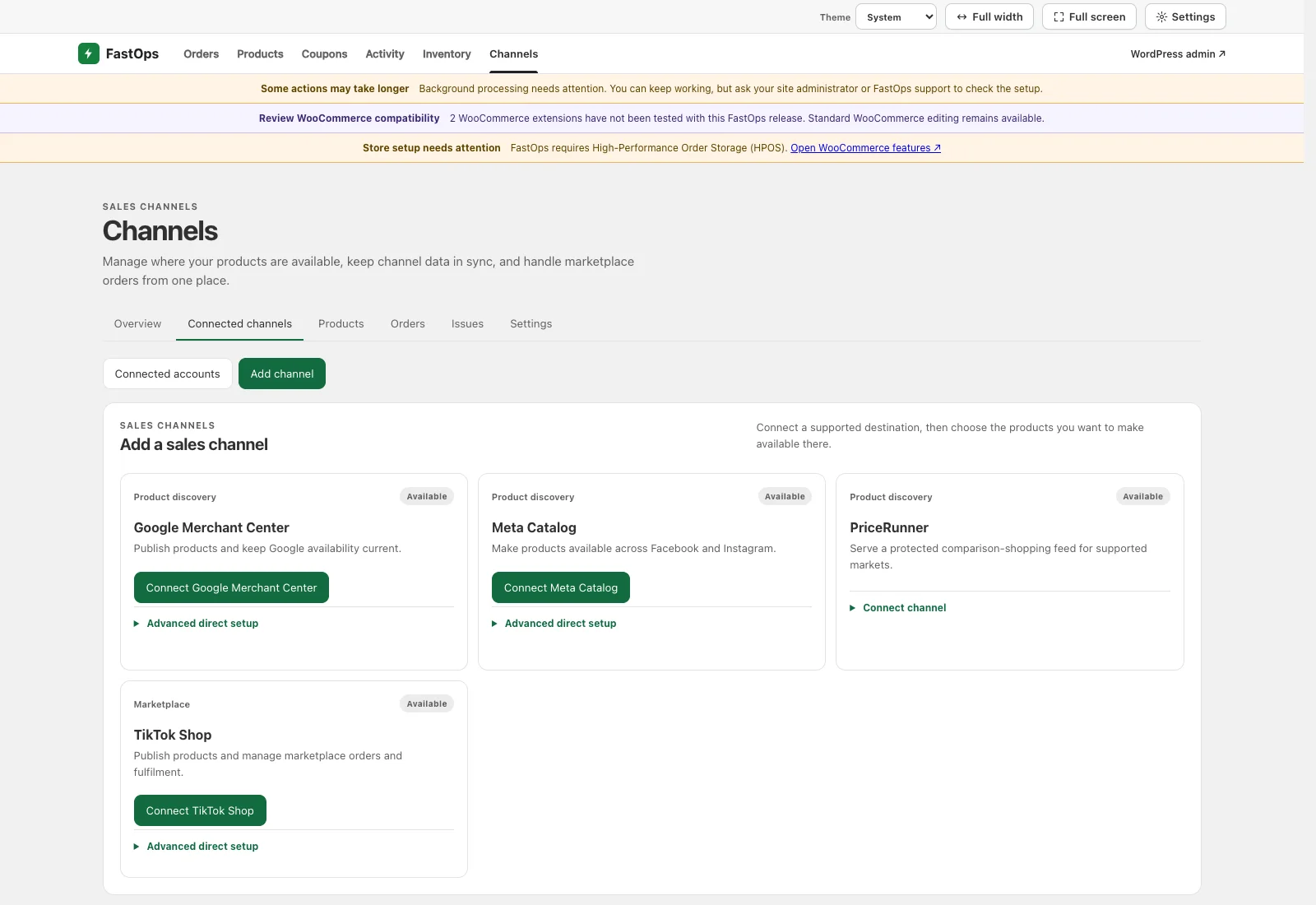
- Use Add channel to see the destinations currently enabled for this store.
- Google Merchant Center is a product-discovery destination.
- Meta Catalog covers eligible Facebook and Instagram catalog use.
- PriceRunner uses a protected comparison-shopping feed.
- TikTok Shop adds marketplace capabilities when they are approved for the connected shop.
03 · Connected accounts
See health, ownership and the safe account action
Connected accounts keeps every remote account separate. Use a clear name that includes the provider, business or market when your store has more than one destination.
- Test connection checks identity and access without publishing a product.
- Edit settings opens the account, market and operating policy for review.
- Pause connection stops new channel work until the connection is deliberately resumed.
- Reconnect appears when authorization is missing, expired or no longer sufficient.
- Disconnect removes the store's authorization. First understand what will happen to published products, incoming orders and provider callbacks.
Never use the same connection for unrelated legal entities or businesses. If a provider account changes owner, pause it, reconnect with the intended identity, retest it and inspect its catalogs before resuming.
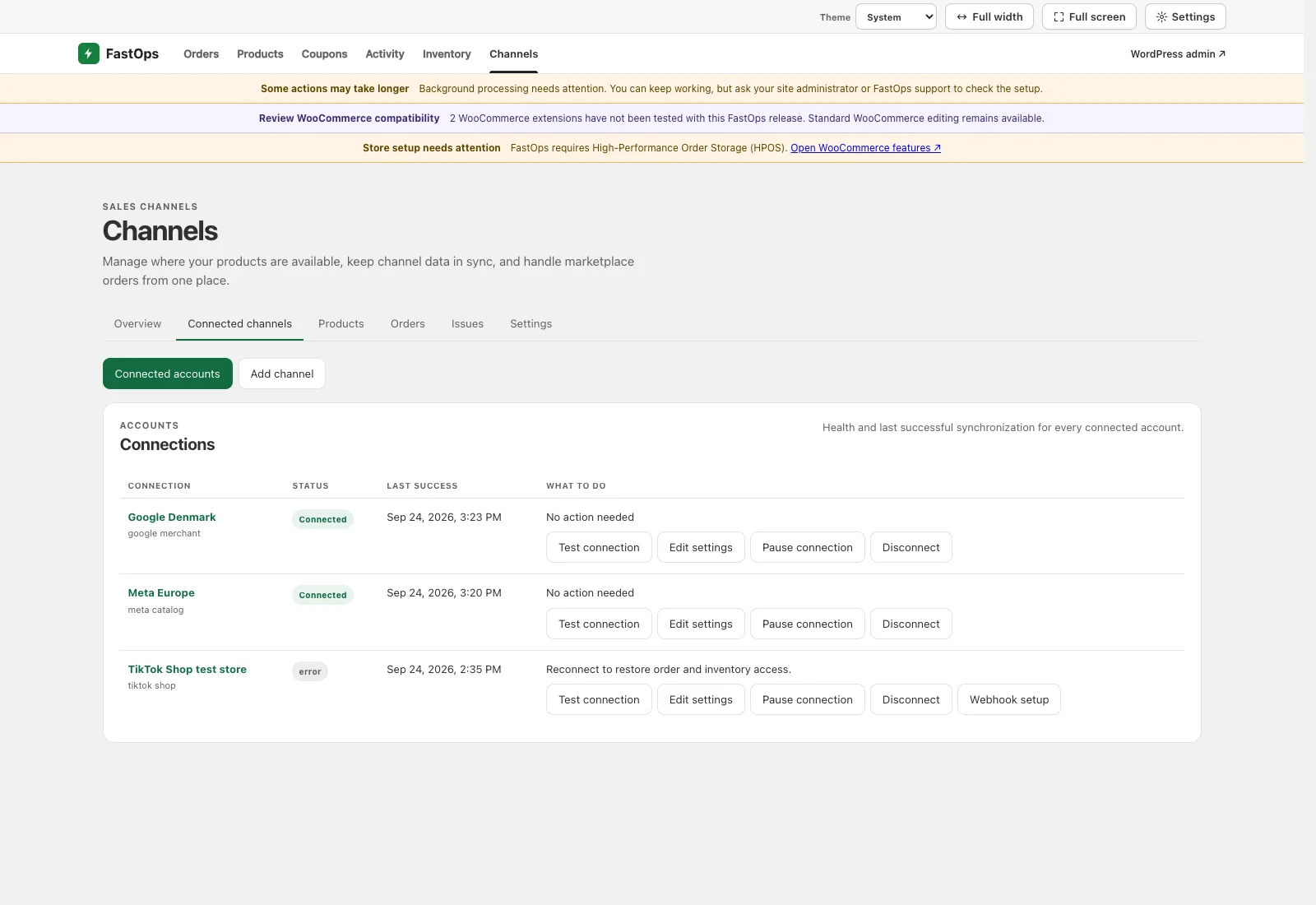
- Connected accounts is the account-health view; Add channel starts a new connection.
- Connected means the last identity and access check succeeded.
- The last successful time helps distinguish an old failure from a current one.
- Test, edit, pause and disconnect are kept next to the account they affect.
- When access needs repair, the row says what must be restored before work continues.
04 · Markets and catalogs
Define one destination before choosing products
Open Products → Catalog setup. A market fixes the destination country, currency and store timezone context. A catalog belongs to one connection and one market, which keeps pricing and publishing decisions explicit.
- Create the market and verify its country and currency.
- Create the catalog under the intended connected account.
- Choose Manage products, search by product name or SKU and select only the products intended for that destination.
- Review the selected products under Channel products.
- Publish the catalog only when every included product is ready.
The product picker searches a bounded result set, so large stores do not have to load every product in the browser. Add one test product first, then grow catalog membership in reviewed batches.
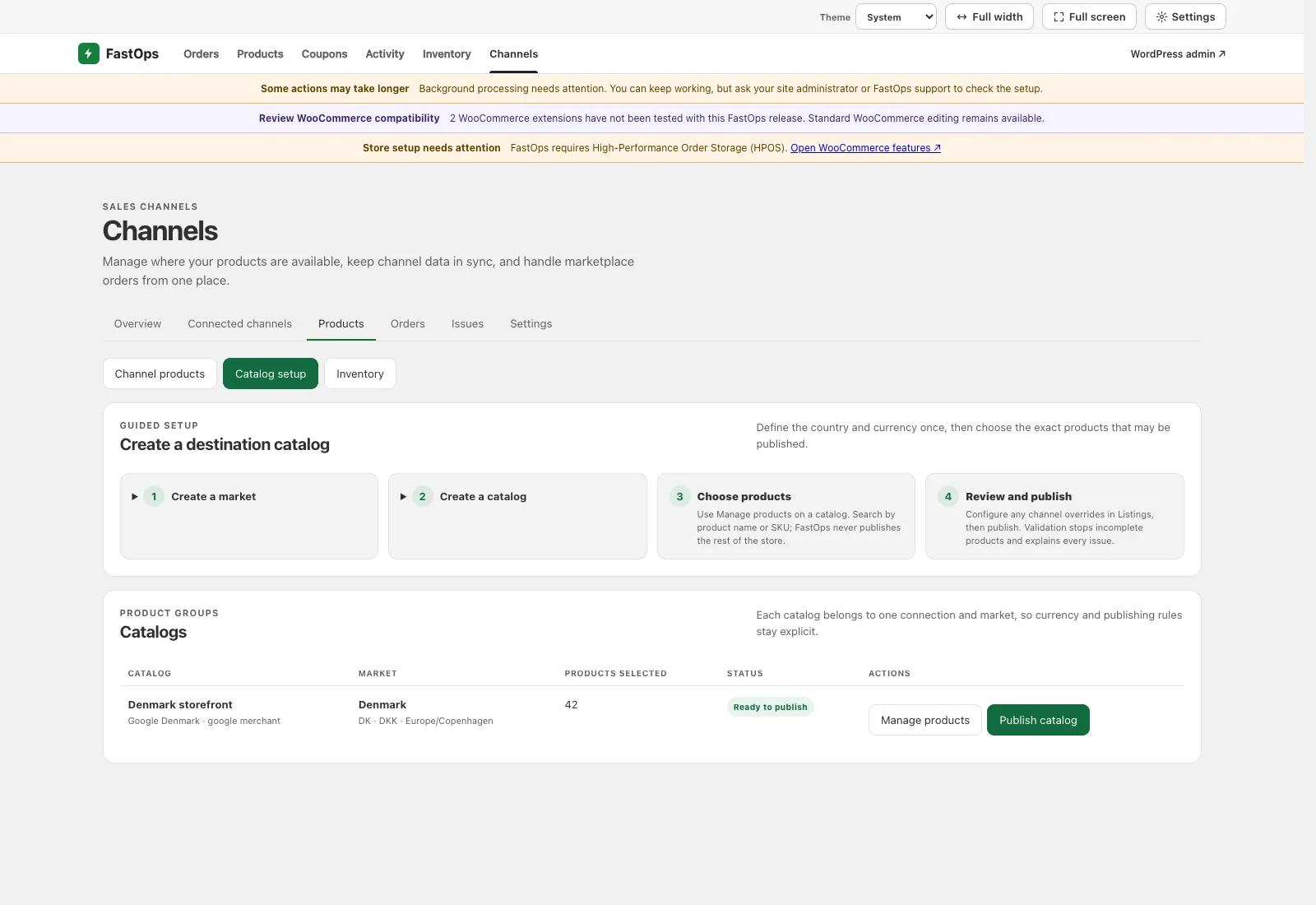
- Create the market first so country and currency are unambiguous.
- Each catalog belongs to one connection and market.
- Manage products searches the store without selecting the rest of the catalog.
- Review listing readiness before publishing.
- Publish catalog is available only for a reviewed destination.
05 · Channel products
Review the actual offer that the customer will see
Products → Channel products shows one row per product destination. The displayed price and available quantity are the channel values after market rules and intentional overrides—not hidden assumptions.
Choose Configure listing to review the destination currency, channel price, compare-at price, stock buffer, maximum quantity, lead time, brand, GTIN or MPN, provider category and listing identity. TikTok Shop can also require a leaf category, warehouse, packed weight, unit and category attributes.
| Status | What to do |
|---|---|
| Setup incomplete | Finish the destination and required listing fields. |
| Fix required | Correct the exact validation message; do not force publication. |
| Waiting or changes ready | Let the current update finish. Investigate only when it exceeds the normal processing window. |
| Published | The provider confirmed the current version. Sample it in the provider portal during setup and regular review. |
| Needs attention | Open the issue and follow its recovery step before retrying. |
Use Withdraw when the offer must no longer be available remotely. Do not edit the provider portal as a permanent workaround; a later valid publication can replace that manual change.
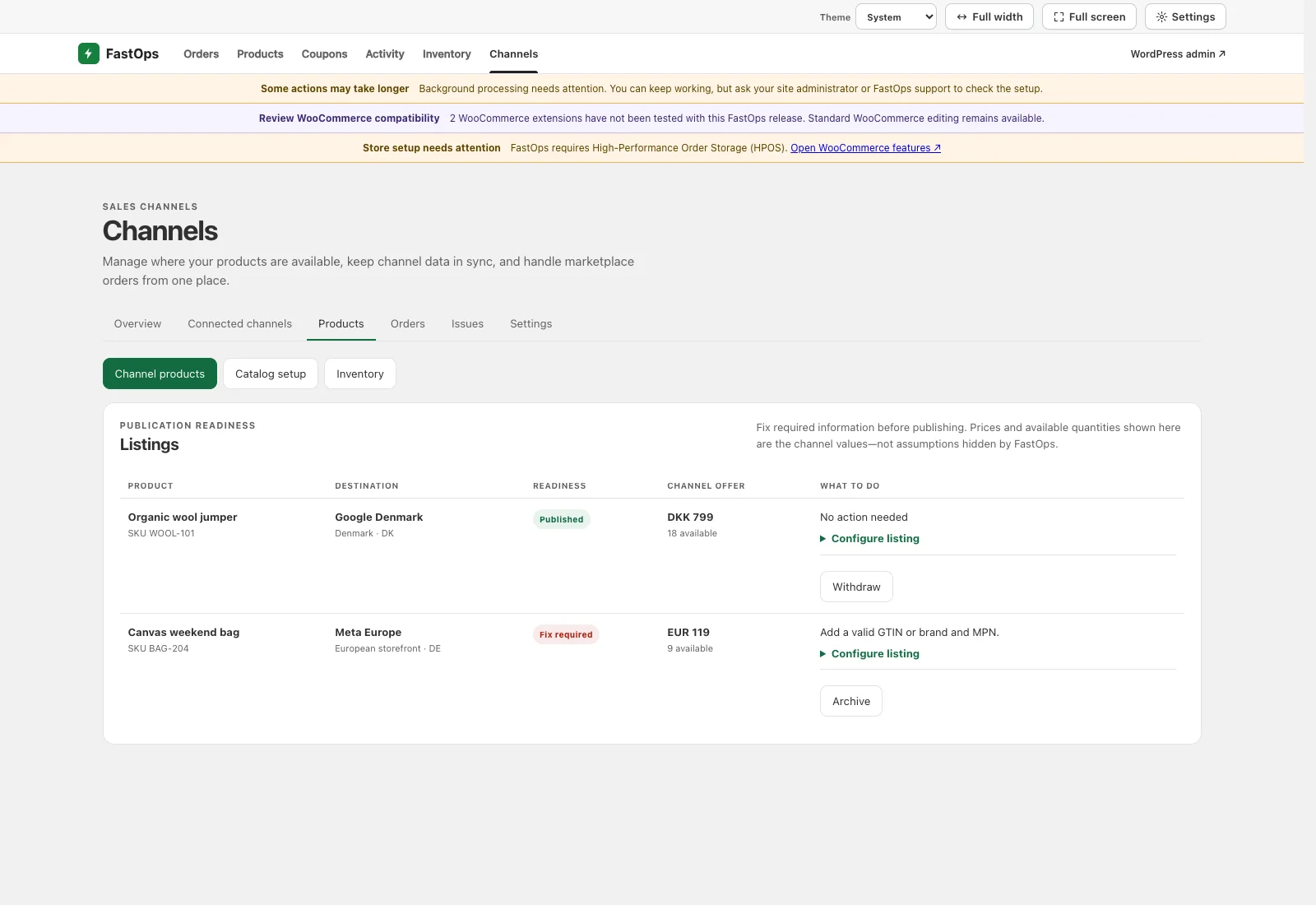
- Channel products is the readiness and publication view.
- Published means the destination confirmed the current listing version.
- Channel offer shows the exact destination price and advertised quantity.
- Fix required keeps an incomplete product out of publication.
- The row names the missing data and opens its listing configuration.
06 · Channel inventory
Choose one stock source and investigate differences
Open Products → Inventory. For each connection, choose exactly one authority:
- WooCommerce stock when WooCommerce controls the physical quantity.
- FastOps Inventory availability when the Inventory extension controls physical stock and reservations.
The expected channel quantity can include reservations, safety stock, a channel buffer, a maximum advertised quantity and mapped locations. It therefore may be lower than physical on-hand stock.
Expected / destination compares the quantity Channels intends to advertise with the latest provider-confirmed value. If stock differs, check the selected source and policy, make sure no second feed or plugin writes to the same catalog, then reconcile before sending another update.
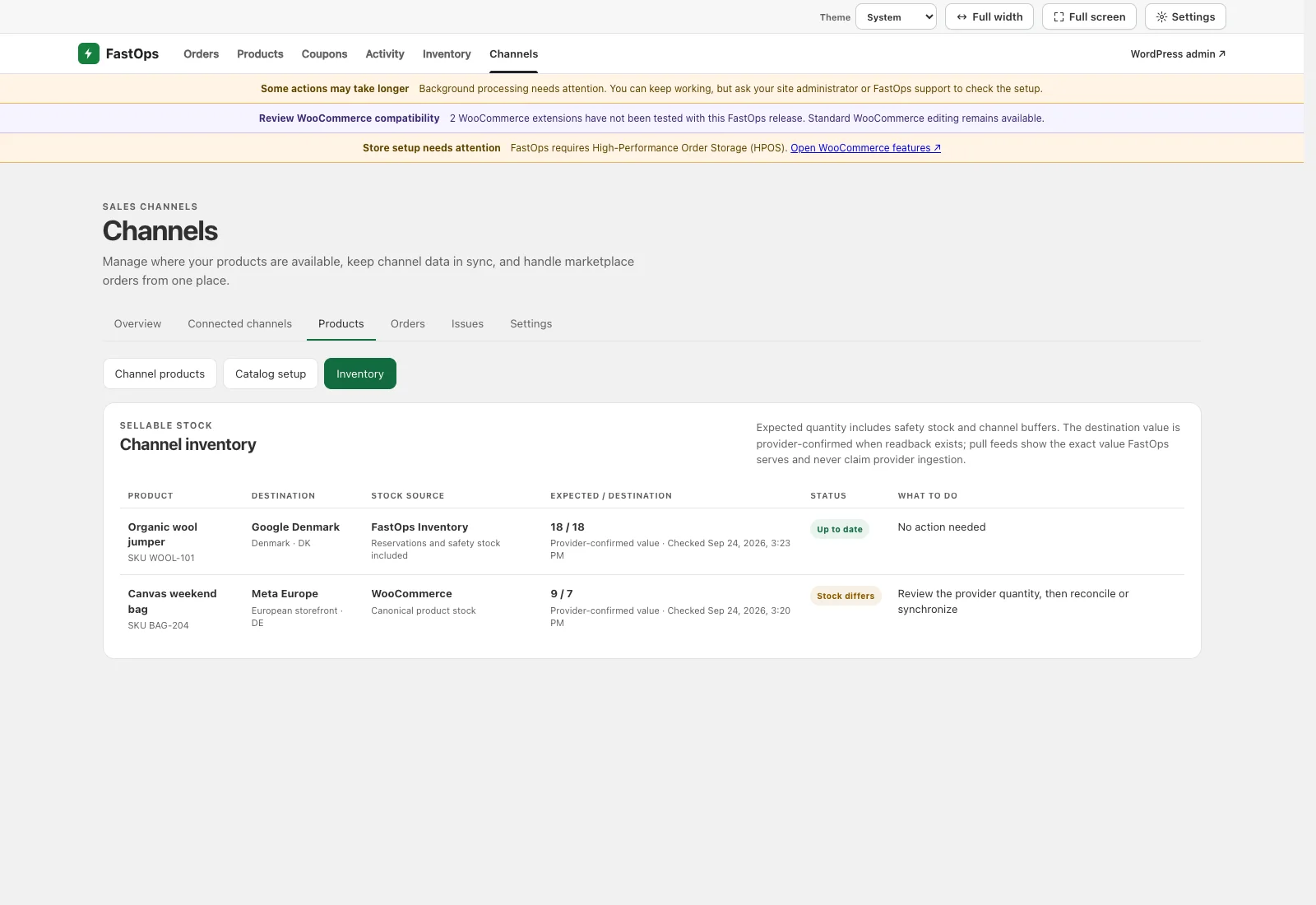
- Stock source says whether WooCommerce or FastOps Inventory owns availability.
- Expected and destination quantities are compared directly.
- Up to date means the latest provider confirmation matches the expected value.
- A difference stays visible instead of being treated as a successful update.
- Follow the named investigation step before synchronizing again.
07 · Marketplace orders
Import one provider order into one WooCommerce order
Product-discovery channels do not create marketplace orders. For a transactional connection, Import marketplace orders is off by default. Leave it off until product mapping, currency, tax, payment, stock, fulfilment, cancellation and refund behavior have passed on staging.
When import is enabled, Channels validates the provider order and creates or recovers it through WooCommerce. The result is a normal WooCommerce order with its channel and provider order identity attached. It appears in Channels → Orders for channel operations and in the normal Orders list for store operations.
- Imported means the WooCommerce order and provider identity are linked.
- Fix before import means Channels stopped before creating an unsafe or incomplete order. Correct the named mapping or money problem, then use the offered recovery action.
- Not imported means the operating policy intentionally excluded that order or event.
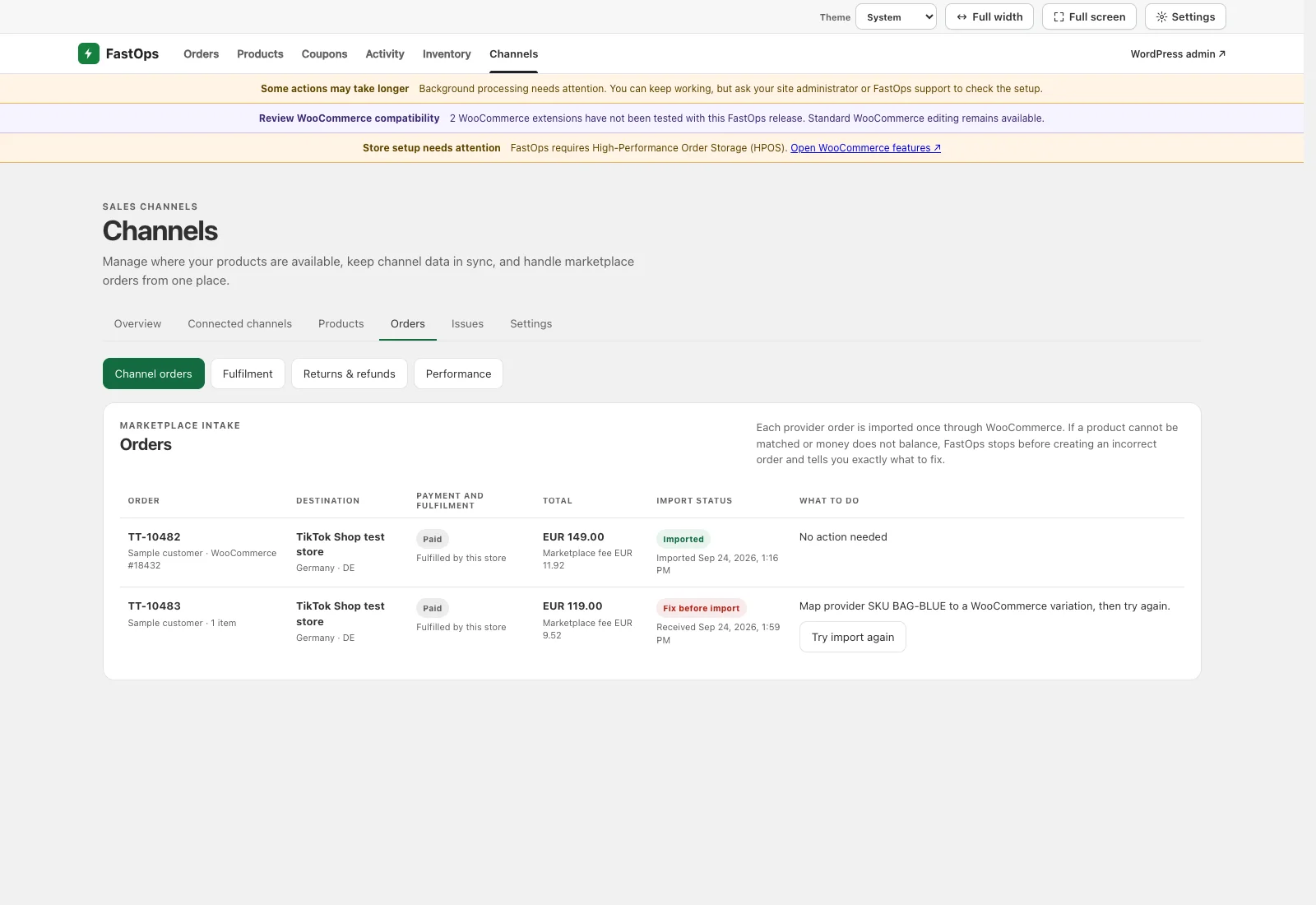
- Channel orders is the marketplace intake view.
- Destination preserves the marketplace and shop identity.
- Totals and marketplace fees remain in the order currency.
- Imported links the provider order to one WooCommerce order.
- Fix before import names the correction and provides a deliberate retry.
08 · Fulfilment and tracking
Send the package that was actually completed
Orders → Fulfilment follows the imported WooCommerce order. Prepare or complete the package in the store's normal fulfilment workflow, then verify the provider order, line quantities, warehouse, carrier, tracking number and public tracking URL.
One order can have partial or split fulfilments. Send only the quantities in the current package; do not mark the entire order shipped when another package is still being prepared. If the provider result is uncertain, wait for reconciliation instead of sending the same shipment again.
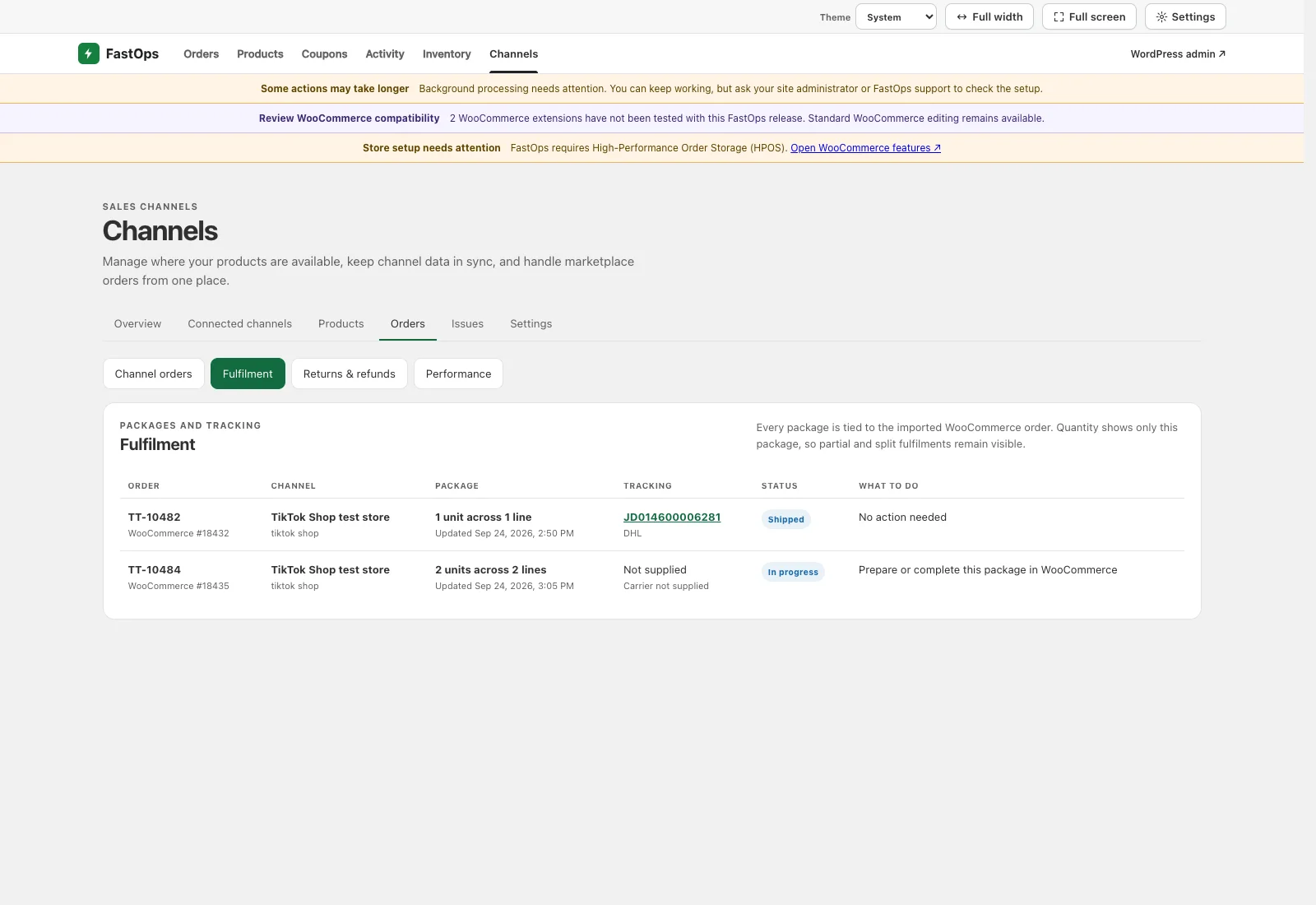
- Fulfilment separates packages and tracking from order intake.
- Package shows the quantity and number of order lines included.
- Tracking is tied to the exact package and carrier.
- Shipped means the provider acknowledged this package.
- In-progress work points back to the WooCommerce fulfilment step that remains.
09 · Returns and refunds
Review buyer requests against the real refundable balance
Orders → Returns & refunds brings provider cancellation, return and refund requests into the same order context. Before approving, verify fulfilment state, request reason, returned quantity and condition, original currency, earlier refunds and the remaining refundable product, tax and shipping amounts.
A request that needs judgment stays paused until an authorized user chooses Approve or Reject. Approved work updates WooCommerce through its normal order and refund behavior, then records the provider result. A cancellation or refund already recorded in WooCommerce is shown as complete instead of being repeated.
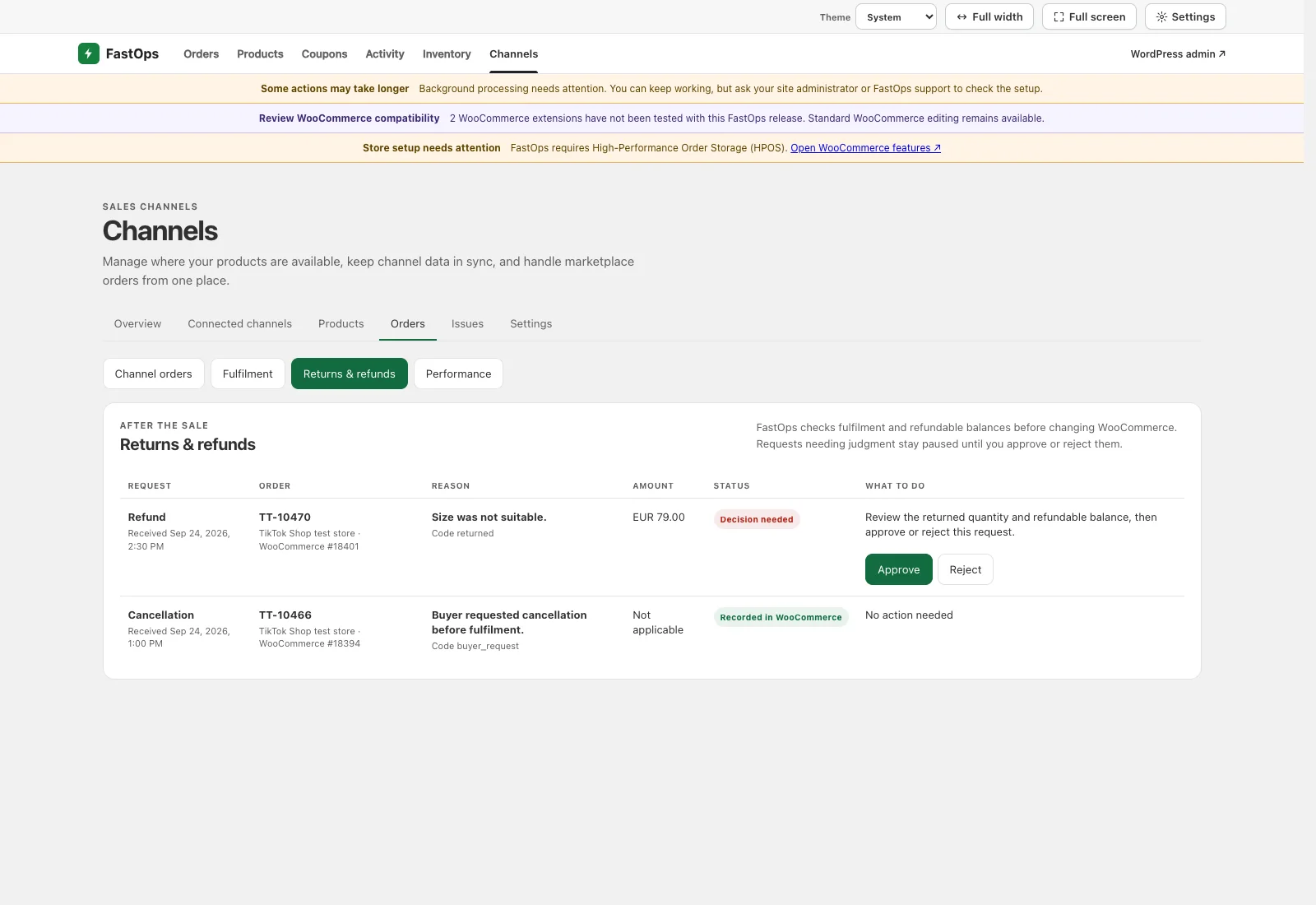
- Returns and refunds keeps post-purchase decisions separate from fulfilment.
- The original provider and WooCommerce order identities stay together.
- Amount remains in the original order currency.
- Decision needed prevents an automatic judgment call.
- Approve or reject only after checking quantity and refundable balance.
10 · Performance
Choose a business period and keep incomplete money visible
Orders → Performance offers Today so far, Yesterday, Last 7 days, Last 30 days, Last 90 days, This month, Last month, This year, Last year, All time and an inclusive custom date range. Calendar periods use the WooCommerce store timezone.
A range containing today displays an in-progress notice and the latest received-data time. Use Yesterday or a completed calendar period for a stable comparison; use Today so far for live operational monitoring.
| Measure | Meaning |
|---|---|
| Revenue | Provider-attributed order value in its original currency. |
| Refunds | WooCommerce refunds linked to those attributed orders. |
| Net sales | Order value after refunds, net tax and net shipping income. |
| Provider fees | Marketplace fee facts received and matched to the orders. |
| COGS | The recorded cost of goods on the WooCommerce order items. |
| Contribution | Net sales minus provider fees and COGS, shown only when both inputs are complete. |
Different currencies are never added together. Missing fees or cost stay Withheld rather than becoming zero. Use this page to find operational gaps and reconcile statements; it is not a replacement for the store's accounting ledger.
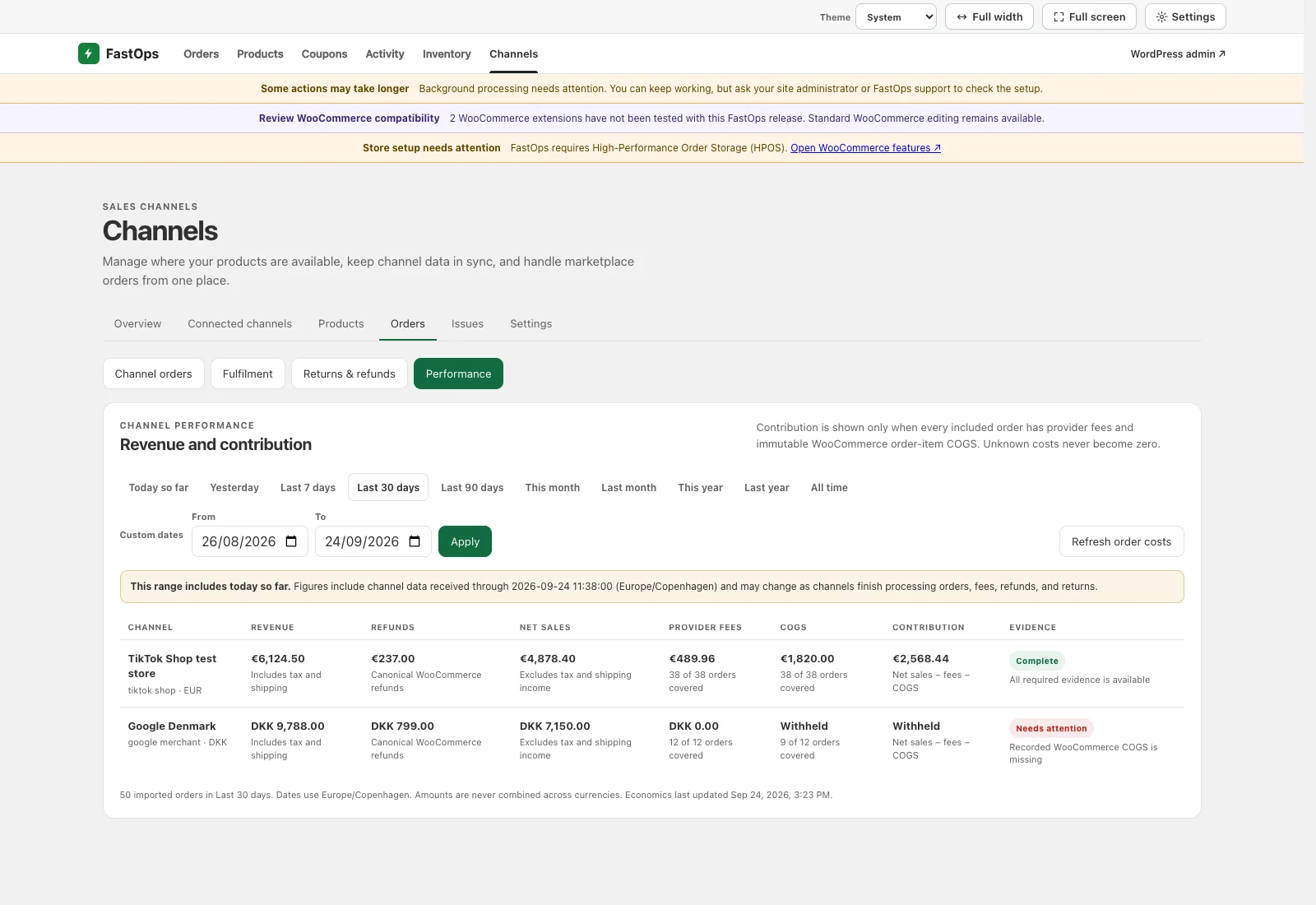
- Common business periods are one click away instead of hidden in a dropdown.
- Custom dates cover inclusive store-calendar days.
- A range containing today is clearly marked as still changing.
- Contribution appears only when fee and COGS evidence is complete.
- Missing cost evidence stays visible and withholds contribution.
11 · Issues and recovery
Understand what happened before taking action
Issues answers four questions for every item: what FastOps was doing, where it happened, what happened and what to do next. It also separates work needing a decision from recently completed work and account history.
- If a provider rejected an action, correct the stated product, account or policy problem before retrying.
- If the provider may have accepted an action but the response was uncertain, let Channels check the provider result. Do not press the action repeatedly.
- If a retry is safe, Channels presents that exact recovery action next to the affected item.
- Completed work names the operation and destination, so “completed” is never the only explanation.
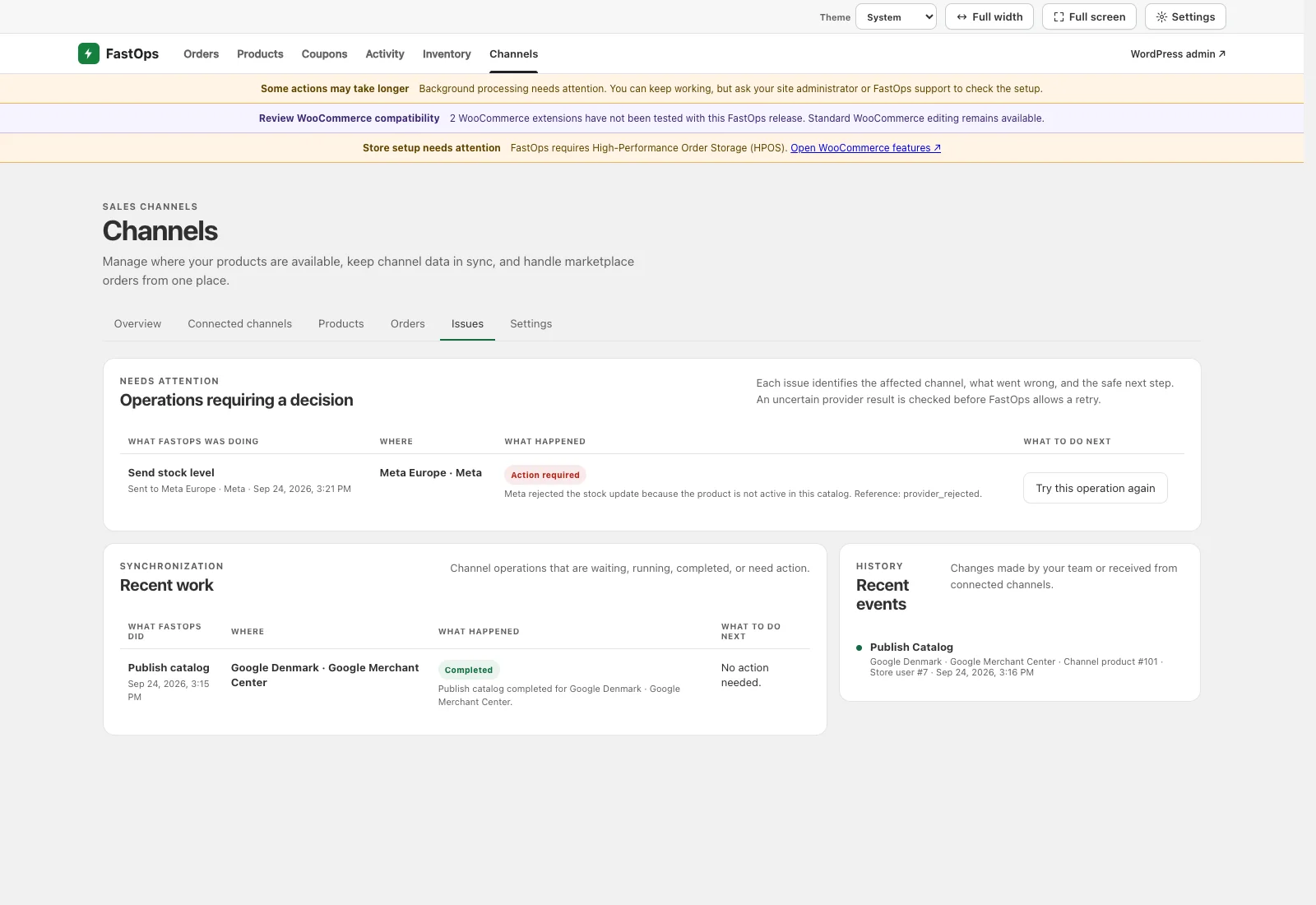
- The operation name explains what FastOps attempted.
- Where identifies the affected account or destination.
- What happened includes the provider result instead of a generic failure.
- The next action appears only when it is safe and useful.
- Recent work and events preserve the context of successful changes.
12 · Dedicated or unified view
Keep Channels separate or add channel context to daily lists
The dedicated Channels workspace is always the control center. It contains provider setup, catalogs, listing fields, inventory policy, quarantined orders, fulfilment, returns, performance and recovery.
In Channels → Settings, a settings manager can enable Show channel details in Products and Orders. This optional unified presentation adds channel filters, status summaries and navigation to the normal FastOps product and order lists. It is off by default.
The setting changes display only. Turning it on does not publish products, import old orders, copy provider fields into WooCommerce or create another synchronization process. Turning it off removes the extra presentation while the dedicated Channels workspace and current connections continue to operate.
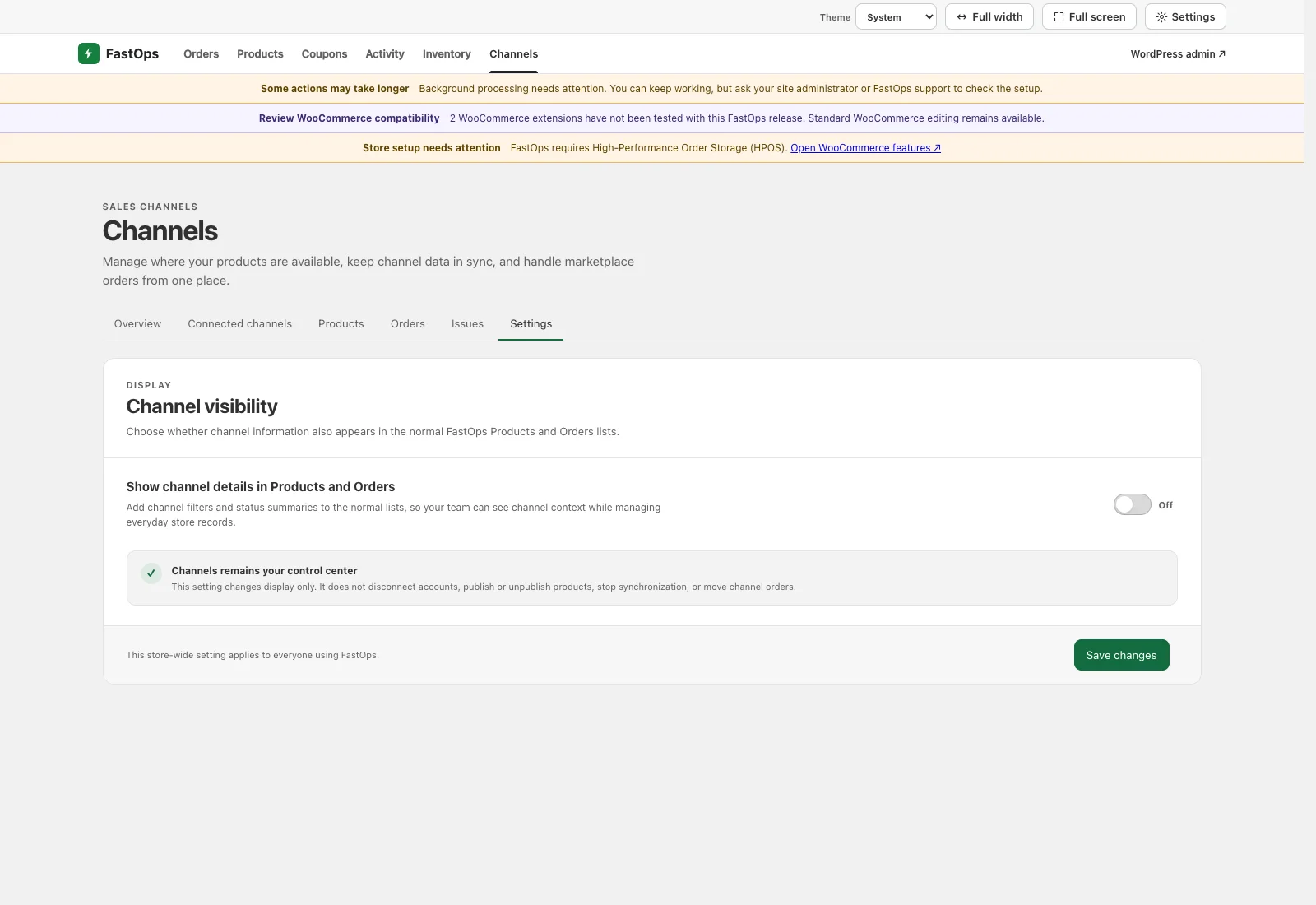
- The setting has one purpose: channel visibility in normal Products and Orders lists.
- Off is the default, preserving the dedicated workspace experience.
- The explanation confirms that synchronization and connections are unchanged.
- Save changes applies the store-wide display preference.
13 · Daily operation
Work from exceptions, not from repeated manual checks
| Frequency | Review |
|---|---|
| Daily | Open Overview, follow the recommended next action, check connection health, resolve invalid listings and inventory drift, and review quarantined orders or failed acknowledgements. |
| Weekly | Sample destination price, stock, landing pages and identifiers; compare marketplace order counts with WooCommerce; confirm no competing catalog or stock publisher has been enabled. |
| Monthly | Reconcile provider statements, fees, refunds and contribution completeness; review account owners and access; check provider category, tax, shipping and returns policy changes. |
For a launch, publish a small canary catalog and observe it before expanding. Do not launch several new providers and the whole catalog together; a small first batch keeps ownership and provider feedback easy to verify.
14 · Troubleshooting
Resolve the named cause without creating duplicates
- A provider is not shown under Add channel
- That provider is not enabled for this store. Do not create connection records manually. Confirm the installed Channels version and the provider capabilities included for the store.
- A connection needs attention
- Open its row and identify whether access expired, required permission is missing or the wrong remote account was selected. Pause new publication if identity is uncertain, reconnect, then run Test connection.
- A product says Fix required
- Open Configure listing and correct the exact identifier, category, image, price, stock or provider-field message. Save, let the new version prepare, then publish once.
- The channel stock differs
- Confirm the selected stock source, location mapping, buffer and cap. Disable any second publisher, check the last provider confirmation, then reconcile before sending another update.
- An order says Fix before import
- Search WooCommerce and Channels by the provider order number, correct the named product, tax, currency or total issue, then use the offered retry. Do not manually create a duplicate.
- An action has not finished
- Open Issues. If Channels is checking the provider outcome, wait for that check. If an explicit recovery action appears, use it once after correcting the cause.
- Today's performance does not match a completed day
- Today so far is intentionally incomplete. Read the received-data time or choose Yesterday or another completed period. Also check whether provider fees and COGS evidence is complete.
- I need to report a problem
- Record the Channels version, provider, connection name, market, time with timezone, affected WooCommerce and provider IDs, the exact Issues message and steps already taken. Remove credentials, tokens and unnecessary customer data from screenshots.